
Connecting Smadex on Clarisights
Smadex is a mobile-first demand-side platform (DSP) for user acquisition, CTV, and retargeting. Connecting Smadex to Clarisights lets you bring campaign and creative performance, including spend, installs, in-app events, video completion, and SKAdNetwork conversions, into your cross-channel reporting alongside your other paid channels.
At a glance
| Authentication | Email and password (exchanged for a bearer token by Clarisights), or a Smadex API key |
| Permissions needed | A Smadex login or API key with reporting access to every advertiser you want to ingest |
| Account discovery | Automatic: every advertiser app (bundle) visible to your credentials is added as its own account when you connect |
| Data freshness | Daily (once per day, early morning in your company's timezone) |
| Lookback window | 60 days on each scheduled run |
| Backfill on connect | Last 60 days, pulled on the first scheduled run after you connect |
| Timezone | UTC (accounts are stored in UTC; daily dates follow Smadex's reporting dates) |
| Currency | Currency reported by Smadex for each row, falling back to the Smadex account currency, then USD |
| Levels supported | Account (Smadex account + advertiser app) · Campaign · Ad (Creative) |
| Limited rollout | No |
Prerequisites
An active Smadex account with at least one advertiser that has an app bundle (for example com.example.app or an App Store ID)
Either the email and password of a Smadex login with reporting access, or a Smadex API key. If you do not have an API key, contact your Smadex account manager to generate one
Access to the Clarisights Integrations page
Steps to Connect
Step 1: Find Smadex on the Integrations page
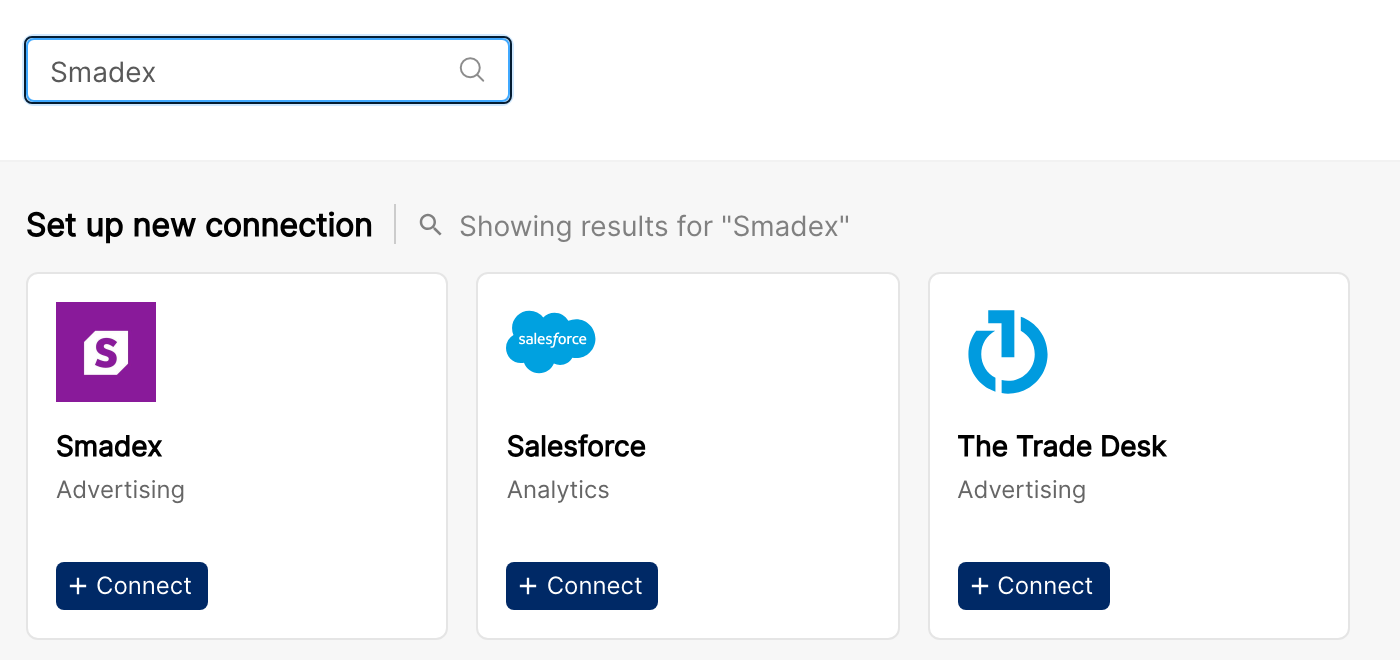
In Clarisights, click the Integrations icon in the left sidebar. Search for Smadex (or click See All under Set up new connection) and click + Connect on the Smadex card. This opens the Smadex Accounts page.
Step 2: Open the credentials form
On the Smadex Accounts page, click + Add Account. The Provide Smadex Credential form opens.
Step 3: Enter your credentials
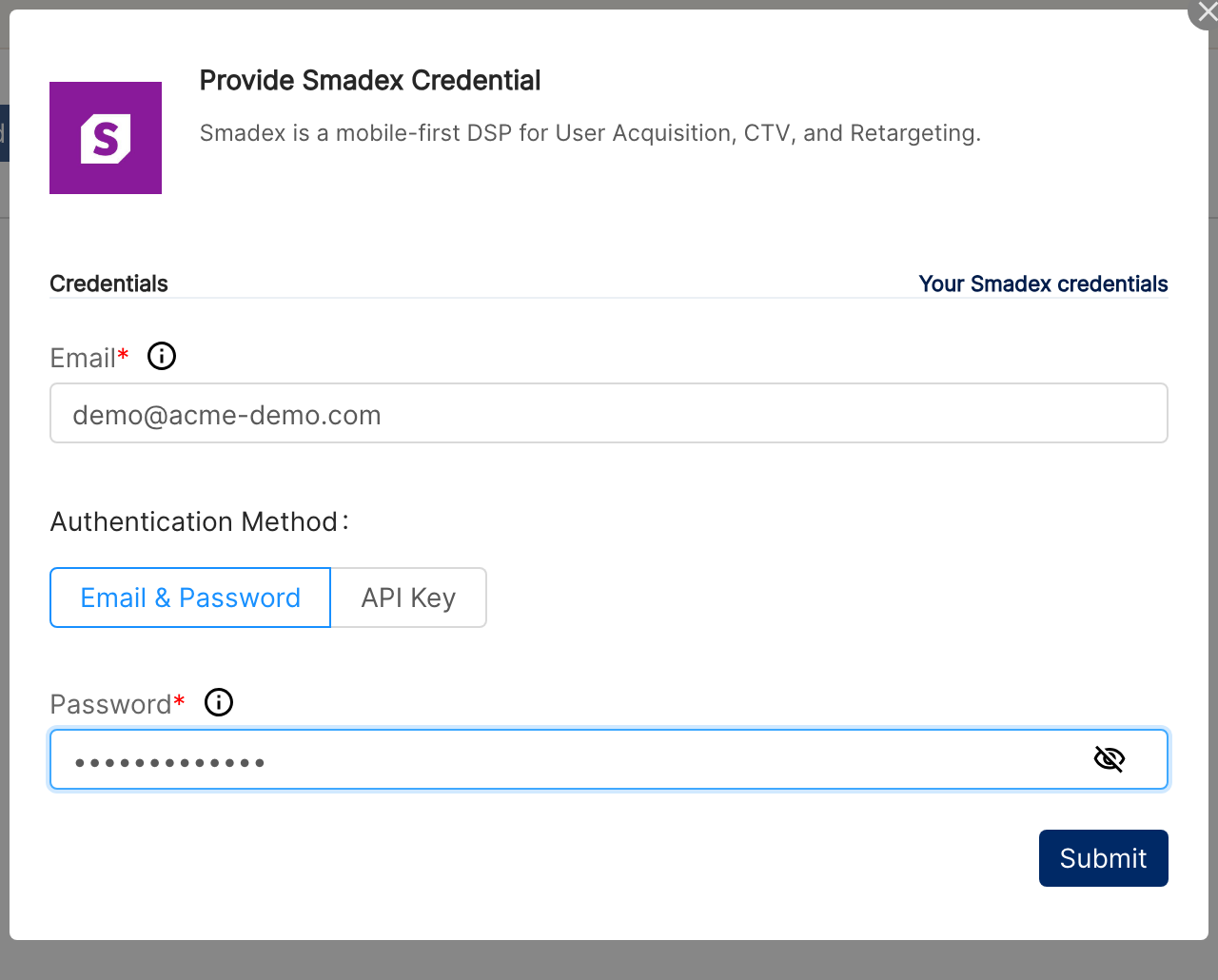
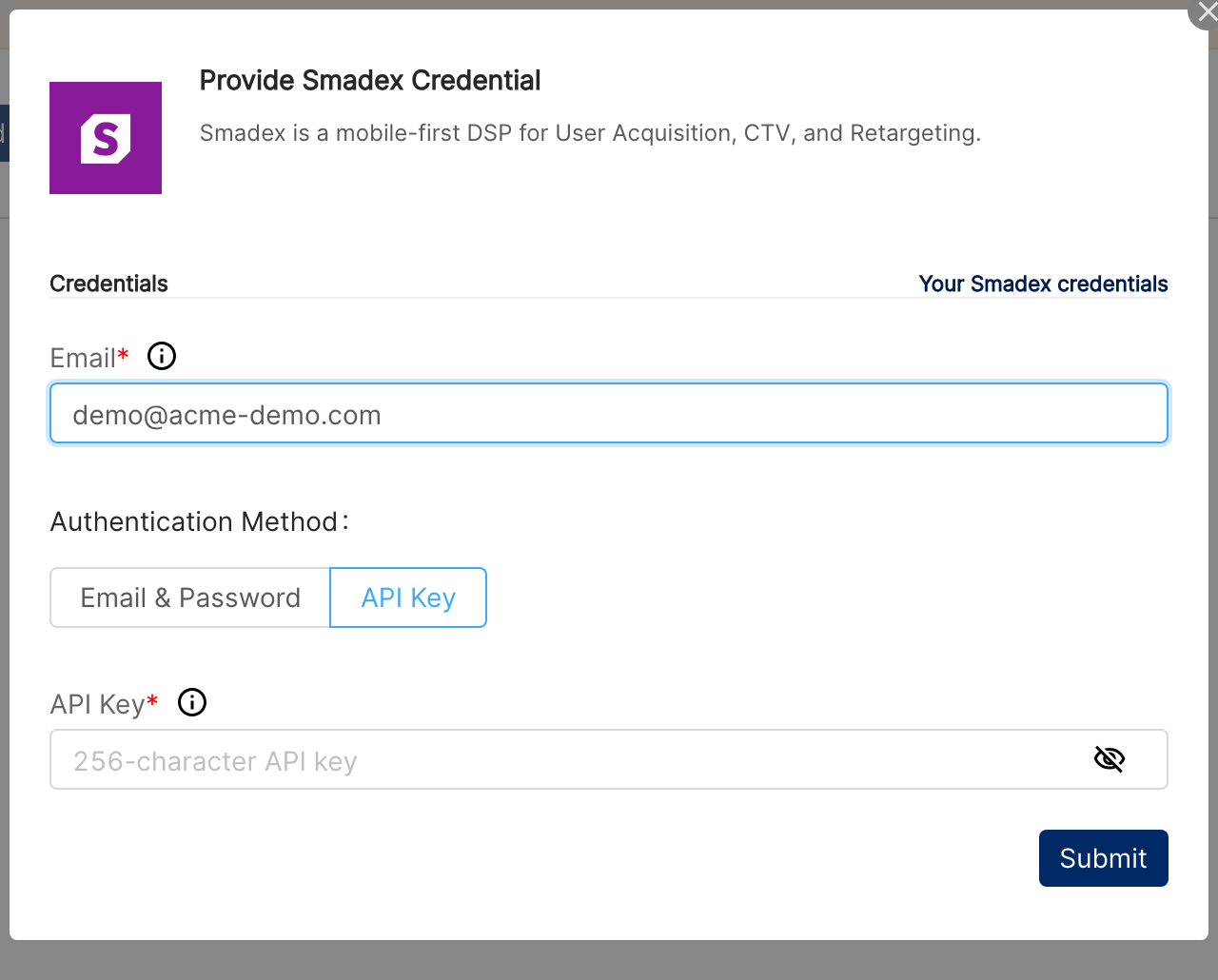
Enter the Email of your Smadex login, then choose an Authentication Method:
Email & Password: enter your Smadex Password. Clarisights signs in to Smadex for you and refreshes the session automatically.
API Key: enter your Smadex API Key. The Email is still required and is used to identify the connection in Clarisights.
Click Submit.
⚠ "Invalid credentials. Please check your authentication credentials and try again." → Smadex rejected the email and password, or the API key. Sign in to Smadex in a fresh browser session to confirm the password, or ask your Smadex account manager to confirm the API key is active, then submit again.
Step 4: Review the discovered accounts
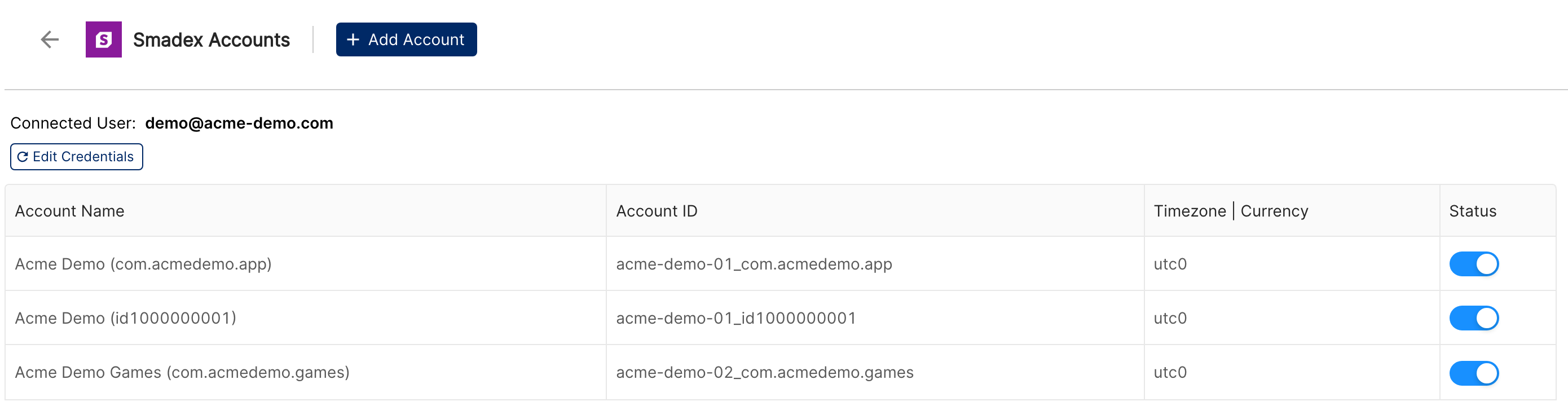
After a successful submit, Clarisights automatically creates one account for every advertiser app (bundle) visible to your credentials. Each account is named <Smadex account name> (<app bundle>) and starts as active. Use the Status toggle to turn off any account you do not want to ingest.
Verify the connection
Go to Integrations → Smadex. You should see your login under Connected User and one row per advertiser app with its Status toggle switched on.
First data appears after the next daily sync (within about 24 hours), covering the last 60 days.
Quick start: create a new report, add Smadex as the data source, and add Account · Campaign · Impressions · Clicks · Installs · Total Spend.
Data available
Hierarchy
How Smadex's native levels map to the standard Clarisights levels:
Native level (Smadex) | Clarisights level |
Account + Advertiser app (bundle) | Account |
Campaign | Campaign |
Creative | Ad |
Dimensions
Dimension | Level | Description |
Account / Account ID | Account | Smadex account name and ID, combined with the advertiser app bundle |
Advertiser Bundle | Account | App bundle or store ID of the advertised app |
Advertiser Domain | Account | Advertiser's web domain |
Campaign / Campaign ID | Campaign | Campaign name and ID |
Ad / Ad ID | Ad | Creative name and ID |
Creative Format | Ad | Creative format as reported by Smadex |
Creative Type | Ad | Creative type as reported by Smadex |
Creative Size | Ad | Creative dimensions |
Click URL | Ad | Click-through destination of the creative (for example an App Store, Google Play, or tracking link) |
Creative MD5 | Ad | Fingerprint of the creative file, useful for matching the same asset across campaigns |
Ad Preview | Ad | Preview of the creative asset; images are shown as images and video creatives play inline |
Metrics
Metric | Description |
Impressions | Ad impressions served |
Clicks | Clicks on the ad |
Bids | Bids placed by Smadex |
Installs | App installs attributed by Smadex |
Landings | Landing events reported by Smadex |
Buys | Purchase events |
Registrations | Registration events |
Subscriptions | Subscription events |
Funnel Step 1 to Funnel Step 8 | Custom funnel events, as configured for your advertiser in Smadex |
Other Conversions | Conversion events not covered by the other event metrics |
App Opens | App open events |
Ads Watched | Ad-watched events |
Views | Video views |
First Quartile Views / Mid Point Views / Third Quartile Views / Completed Views | Video views that reached 25%, 50%, 75%, and 100% of the video |
Skips | Video skips |
Media Spend | Media cost |
Third Party Spend | Third-party costs reported by Smadex |
Total Spend | Total cost (media plus third-party) |
Revenue | Revenue reported by Smadex |
Buys Revenue | Revenue from purchase events |
Ads Watched Revenue | Revenue from ad-watched events |
Installs (SKAdNetwork), Buys (SKAdNetwork), Registrations (SKAdNetwork), Landings (SKAdNetwork), Subscriptions (SKAdNetwork) | The same events as reported through Apple's SKAdNetwork |
Funnel Step 1 (SKAdNetwork) to Funnel Step 8 (SKAdNetwork) | Custom funnel events reported through SKAdNetwork |
Other Conversions (SKAdNetwork), App Opens (SKAdNetwork), Ads Watched (SKAdNetwork) | Other events reported through SKAdNetwork |
Spend and revenue metrics are currency metrics and are converted to your reporting currency.
Limitations & known constraints
Advertisers need an app bundle: accounts are created per advertiser app bundle. Advertisers without a bundle (for example web-only advertisers identified only by a domain) are not added, and their data is not imported.
All discovered apps are added: there is no selection step on connect. Every bundle visible to your credentials becomes an active account; switch off the ones you do not need with the Status toggle.
New advertisers are not picked up automatically: advertiser apps are discovered when you connect. To add apps created in Smadex later, re-submit your credentials with Edit Credentials.
No ad group level: Smadex data is available at Account, Campaign, and Ad level only.
60-day lookback per run: each daily run re-pulls the last 60 days, so late-arriving conversions inside that window are picked up. Older history requires a one-off backfill from support.
Report limits: Smadex allows a limited number of reports per login per hour. Large backfills are paced to stay within that limit and can take longer to complete.
UTC dates: daily data follows Smadex's reporting dates in UTC. If you view Smadex reports in another timezone, daily figures can differ slightly at day boundaries.
Funnel step names are generic: Funnel Step 1 to 8 appear under these names. Rename them with custom metrics if you want the event names you use in Smadex.
Operating notes
Refresh schedule: daily.
Lookback: 60 days per run.
Multi-account: one Smadex login can cover several Smadex accounts and advertiser apps; each app is a separate Clarisights account, keyed by Smadex account ID and app bundle. To connect advertisers under a different Smadex login, click + Add Account again with that login.
Currency conversion: the currency Smadex reports for each row is preserved on ingest and converted to your reporting currency by Clarisights.
Credential rotation: if you change your Smadex password or API key, update it from Integrations → Smadex → Edit Credentials using the same Email. Until then, scheduled syncs for that login stop updating.
Need help?
When contacting support from the in-app messenger, please include:
The integration name and Account ID (Integrations → Smadex)
The exact error message or screenshot
The step where the issue occurred
When the issue started