
Extracts, Drafts & Versions in Export Pipelines
An export pipeline delivers one file per extract on every run. An extract is one output table: the dimensions and metrics you pick, with optional filters. This article covers how you choose what goes into those files:
Data sources: the channels the pipeline reads from.
Extracts: one output table each, with its own fields and filters.
The draft: where you edit extracts. Nothing in it is live.
Versions: what you get when you publish the draft. Schedules export the published versions.
When and where the files are delivered is set by the pipeline's schedules: see Managing Export Schedules. If you haven't created a pipeline yet, start with Getting Started with Export Pipelines.
Picking data sources
The first step of the wizard for a new pipeline, Sources, asks for a Pipeline name and the data sources. The dimensions and metrics you can export come from the channels you select here.
Under Data sources, search for a channel in the Search data sources box, or browse the groups. They follow the categories of the Integrations page.
Tick every channel the pipeline should read from.
Optionally, pick a segment under Prefill from a segment (see below).
Click Continue. The pipeline is saved from this point, with an open draft, so you can close the wizard and come back to it.
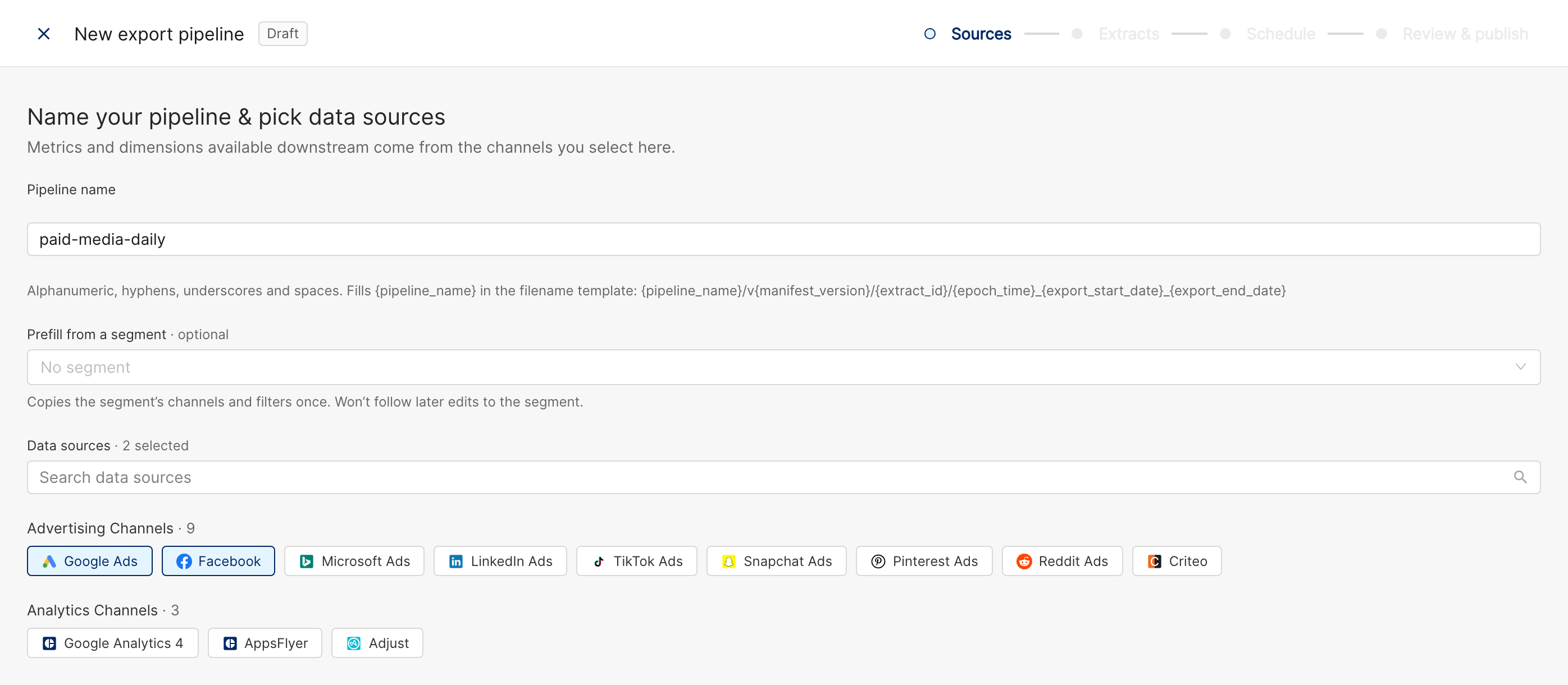
Starting from a segment. If your reports already use a segment for the same scope, pick it under Prefill from a segment. Clarisights copies the segment's channels into the data sources, and every new extract starts with the segment's filters. This is a one-time copy: later edits to the segment don't change the pipeline. Exports can only filter on dimensions, so any metric or time-dimension conditions in the segment are left out, and segments that only have such conditions aren't offered.
Changing sources later. On the pipeline page, click Edit sources next to the source chips. Removing a source doesn't change any extract: fields that only come from that source export 0 or (not set) until you edit the extract.
Tip: To limit an export to certain channels, choose only those channels as data sources rather than filtering.
Adding an extract
The Extracts step lists the extracts saved to the draft. Each one becomes its own file on every run.
Click Create new extract. If the draft already has extracts, choose From scratch or Copy an existing extract (the copy gets the same fields, with
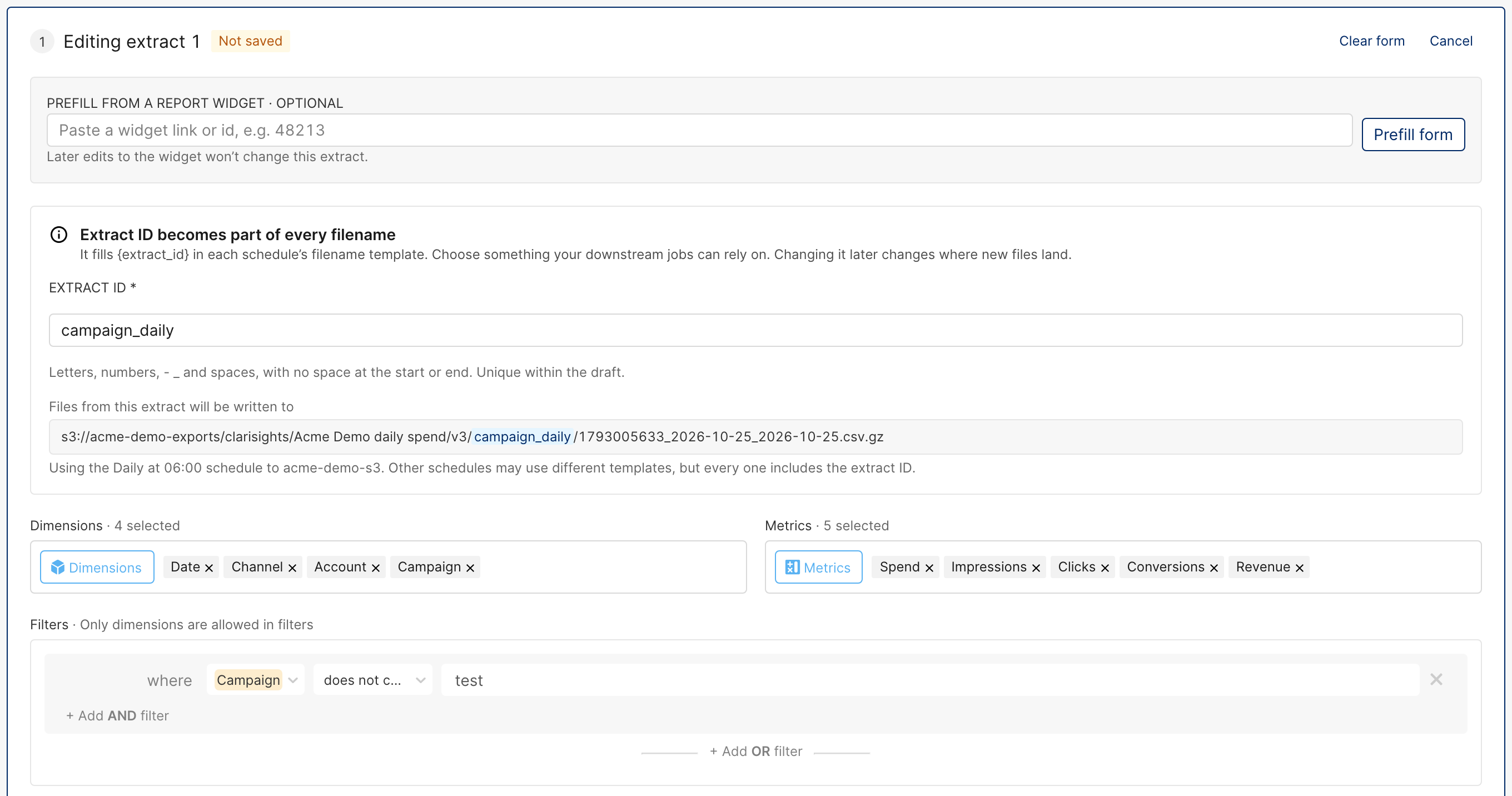
_copyadded to its ID).Optionally, fill the form from a report widget (see Prefill from a report widget).
Enter the Extract ID.
Pick the dimensions and metrics.
Optionally, add filters.
Run a preview to check the rows.
Click Save to draft.
Repeat for each output table you need, then go to Publishing a version.
Extract ID
The extract ID names the extract's files: it fills {extract_id} in the schedule's file name template, so pick something your downstream jobs can rely on.
Use letters, numbers, hyphens, underscores and spaces, with no space at the start or end.
Up to 80 characters.
Unique within the draft.
Changing the ID later changes where new files land.
Dimensions and metrics
The Dimensions and Metrics pickers work like the ones in report widgets, limited to what the pipeline's data sources provide. They include your custom metrics and custom dimensions. Every extract needs at least one dimension or metric.
Time dimensions are available in every pipeline: Date, Day of Month, Day of Week, Week, Week Number, Week of Year, Month, Month of the Year, Quarter and Year. Weeks follow your company's start-of-week setting.
Rows. Each file has one row per combination of the dimensions you picked, over the whole date range of the run. Without a time dimension, a run covering the last 7 days gives one row per campaign (for example) with 7-day totals. Add Date to get one row per day.
Columns. Fields keep the order you picked them in, and that is the column order in the preview and the file: dimensions first, then metrics. In the file:
Dimension columns use the dimension's name, as in Clarisights.
Metric columns use the metric's key rather than its name. The
.meta.jsonfile written next to each file maps every column to its name in Clarisights.A last column,
_extracted_at, holds the date and time the run started.
Fields that are no longer available from the pipeline's sources show as amber chips. Remove them to save the draft.
Filters
Filters limit the rows of an extract. Only dimensions can be used in filters, and time dimensions can't: to limit the dates, use the schedule's date range instead.
Conditions in the same group must all match. Add one with + Add AND filter.
A row is exported if it matches any group. Add a group with + Add OR filter.
Changes apply as you make them. Every condition needs a value before you can save.
Operator | Keeps rows where the dimension value |
is | Exactly matches one of the values you enter |
is not | Matches none of the values you enter |
contains | Contains the text, ignoring case |
contains (case sensitive) | Contains the text, with the same case |
does not contain | Doesn't contain the text, ignoring case |
does not contain (case sensitive) | Doesn't contain the text, with the same case |
starts with | Starts with the text, ignoring case |
starts with (case sensitive) | Starts with the text, with the same case |
contains (regex) | Matches a regular expression, ignoring case |
does not contain (regex) | Doesn't match a regular expression, ignoring case |
Example: to export campaigns whose name contains "Brand", plus those that contain "Search" but not "Test":
Group 1: Campaign contains Brand
Group 2: Campaign contains Search, AND Campaign does not contain Test
Prefill from a report widget
If a report widget already shows the table you want, you can copy its setup into the extract instead of picking fields one by one.
In the report, open the widget's ⋯ menu and click Copy Widget Link, or note the widget's ID.
In the extract editor, paste the link or ID into Prefill from a report widget.
Click Prefill form, or press Enter.
Check the result, then adjust the fields and save.

What is copied:
The widget's dimensions, including its breakdowns.
Its metrics. Metric breakdowns become the base metric, and metric slices are skipped.
Its widget, tab and report filters, combined so that all of them apply. Metric and time-dimension conditions are left out.
An extract ID based on the widget's name.
Fields that the pipeline's data sources don't provide are skipped, and the result lists them. This is a one-time copy: later changes to the widget don't change the extract.
Preview
Before saving, check the rows the extract would produce. A preview writes nothing to your storage.
Under Preview data, pick a date range. The default is Last 7 Days. The other options are Today, Yesterday, Last 14 Days, Last 30 Days, Last 7 Days Including Today and Last 30 Days Including Today.
Click Run preview.
Scroll the table: rows load 100 at a time.
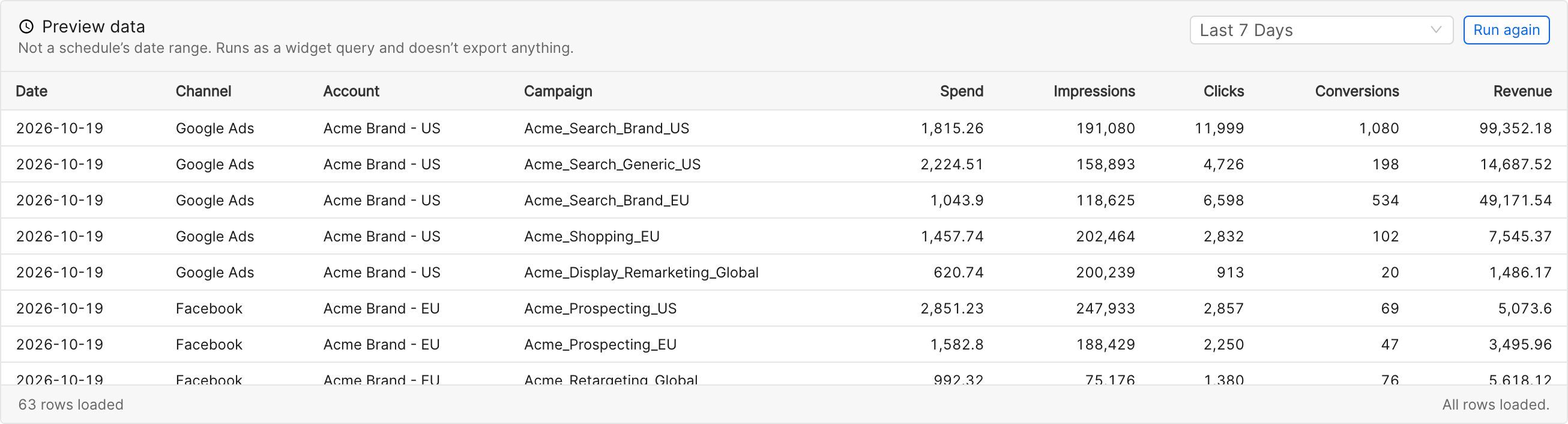
If you change fields or filters afterwards, click Refresh to run it again.
The preview is a sanity check, so the file can differ slightly:
Preview dates use your company timezone. Scheduled runs use the schedule's timezone.
The preview rounds metrics to 2 decimals, shows empty dimension values as (not set) and empty metrics as a dash.
The preview shows metric names. The file uses metric keys (see Dimensions and metrics).
The draft
All changes to a pipeline's extracts go into its draft. Each pipeline has one draft, shared by everyone who can manage export pipelines.
Saving: there is no autosave. Each extract is saved on its own when you click Save to draft. If you close the editor with unsaved changes, Clarisights asks whether to save or discard them.
Removing an extract: Remove takes it out of the draft straight away, without asking.
Nothing is live: the draft isn't exported until you publish it.
Opening the draft: on the pipeline page, click Open draft. If there is no draft, New draft starts one from the live version.
When two people edit at once. If a teammate saves the draft after you opened it, your next save doesn't go through and you see Someone else changed this draft. Click Reload draft to get their version, then redo your change. If someone else published or discarded the draft in the meantime, Clarisights tells you so and takes you back to the pipeline.
Discarding the draft. On the Versions tab, click Discard… on the draft row, then Discard draft. This removes the draft for everyone, including anyone editing it now, and can't be undone. The live version keeps exporting as it is.
Publishing a version
Click Publish draft… on the wizard's Review & publish step, or Publish… on the pipeline's Overview or Versions tab.
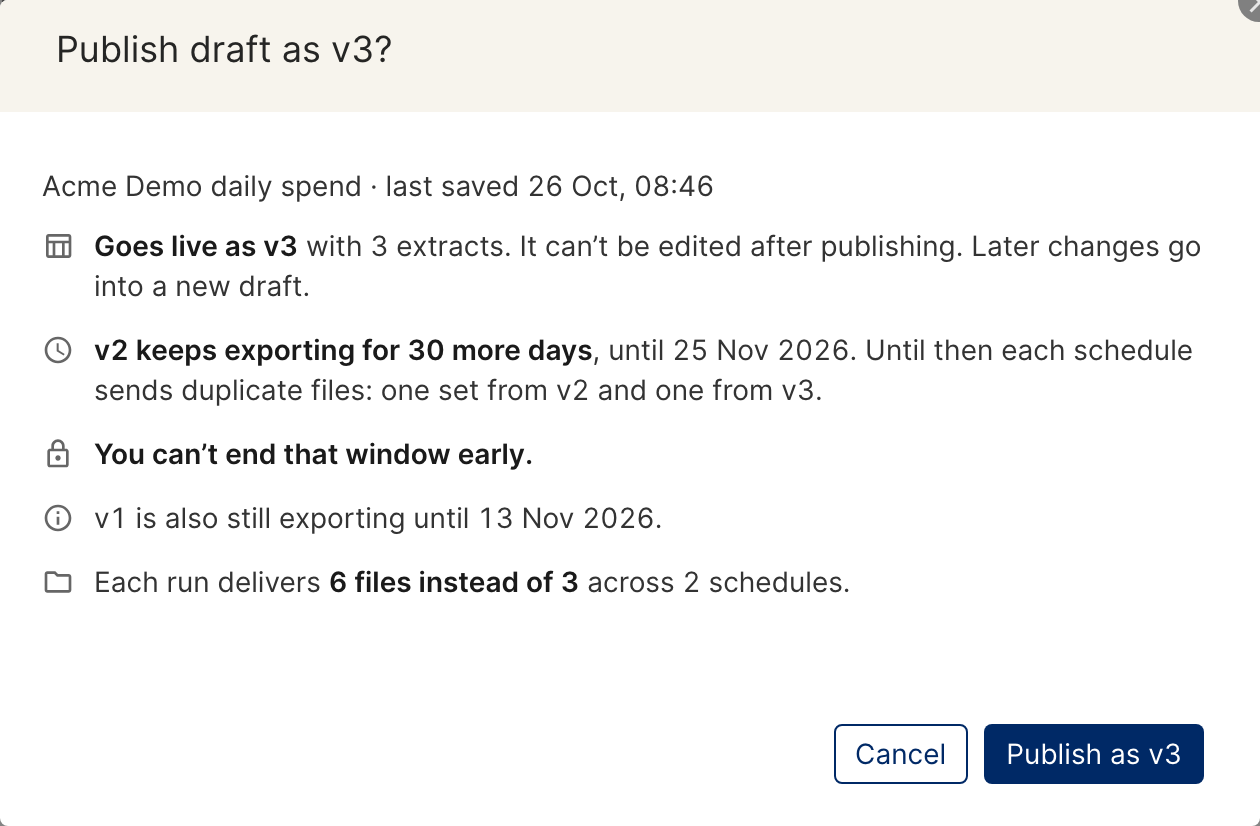
Read the summary of what will happen, including the 30-day overlap.
Click Publish as vN.
When you publish:
The draft becomes the next numbered version (v1, v2 and so on), and the draft closes. Published versions can't be edited: later changes go into a new draft.
If the pipeline has active schedules and isn't paused, an export usually starts right away, and a window shows the runs as they start. If no run appears, the export runs at the next scheduled time. If it has no schedules yet, nothing is delivered until you add one.
The previous live version keeps exporting for 30 more days (see The 30-day overlap).
An empty draft can't be published: add at least one extract first.
The Versions tab
The pipeline's Versions tab lists the draft and every published version, newest first. Click a row to see its extracts.
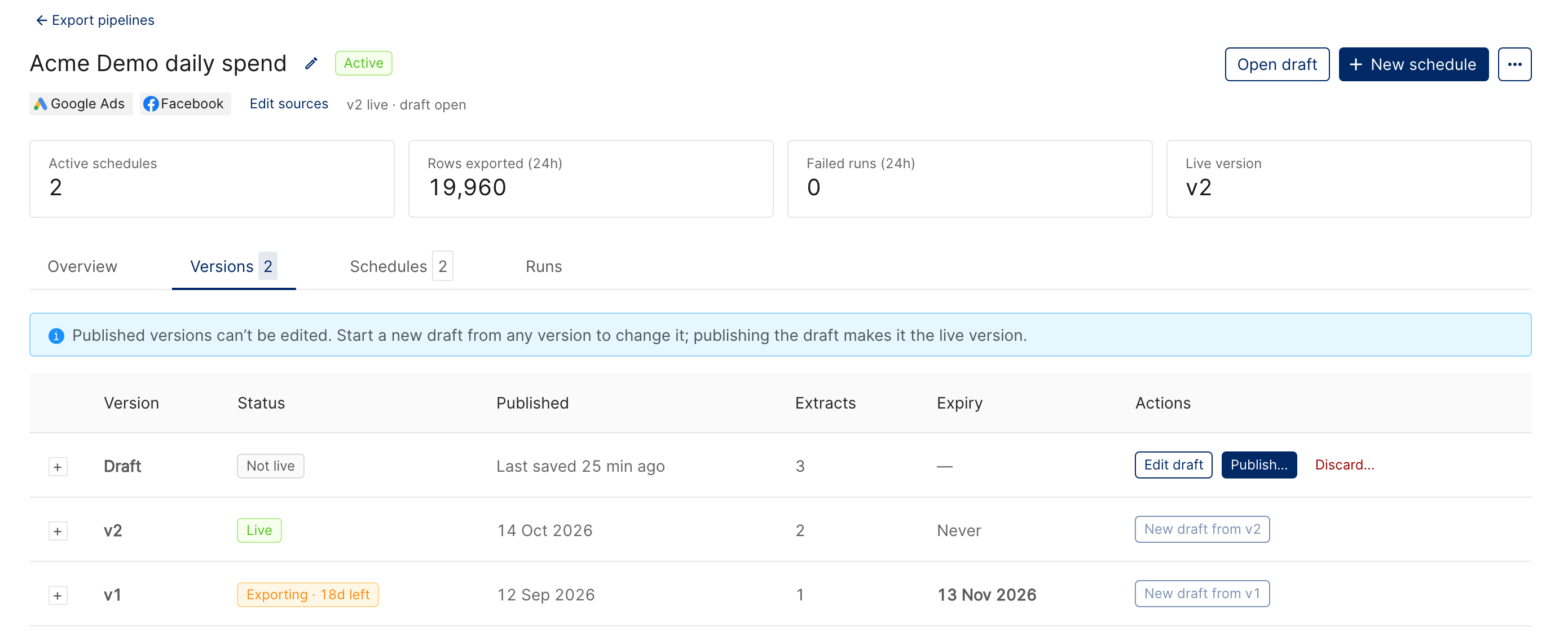
Status | What it means | Exported by schedules? |
Not live | The shared draft | No |
Live | The latest published version. Its Expiry is Never. | Yes |
Exporting · Nd left | A previous version in its 30-day overlap, until the date under Expiry | Yes, next to the live version |
Expired | A previous version past its 30 days. It stays listed so you can restore it. | No |
The 30-day overlap
After you publish, the previous version keeps exporting for 30 days, so files from both versions arrive on every run:
Each schedule sends one file per extract of the live version, plus one per extract of the previous version.
With the default file name template, each version writes into its own
v<N>folder (for examplev2/andv3/), so the files don't overwrite each other.The overlap can't be ended early.
Publishing again within the 30 days adds another set of files, for another 30 days.
Important: Plan downstream changes before you publish. Point your jobs at the new version's folder, or make them ignore the old one, so the same data isn't loaded twice. If a schedule's file name template has no
{manifest_version}, files from both versions land in the same folder or even overwrite each other: see the file name template.
Restoring an older version
You can't republish an old version directly, but you can start a draft from it.
On the Versions tab, find the version, even an expired one.
Click New draft from vN. If a draft is already open, publish or discard it first.
Change anything you need, then publish.
The restored setup goes live under a new version number (for example v4 with the extracts of v2), and the version that was live until then starts its 30-day overlap.
Things to know
Only users with the Admin or Data Manager role can see and change export pipelines.
Schedules aren't tied to a version: every run exports the live version and any version in its 30-day overlap. There is nothing to re-point after a publish.
For when data is complete enough to export, see Export Scheduling & Timing Guide. If a run fails, see Troubleshooting Export Failures.