
Troubleshooting Password & Login Issues
This article covers the most common problems when signing in to Clarisights with an email address and password. If you sign in with Google, see Troubleshooting Google Sign-In Issues. If you sign in with SSO (for example Okta), password problems are handled by your company's identity provider, so contact your IT team.
Setting your password for the first time
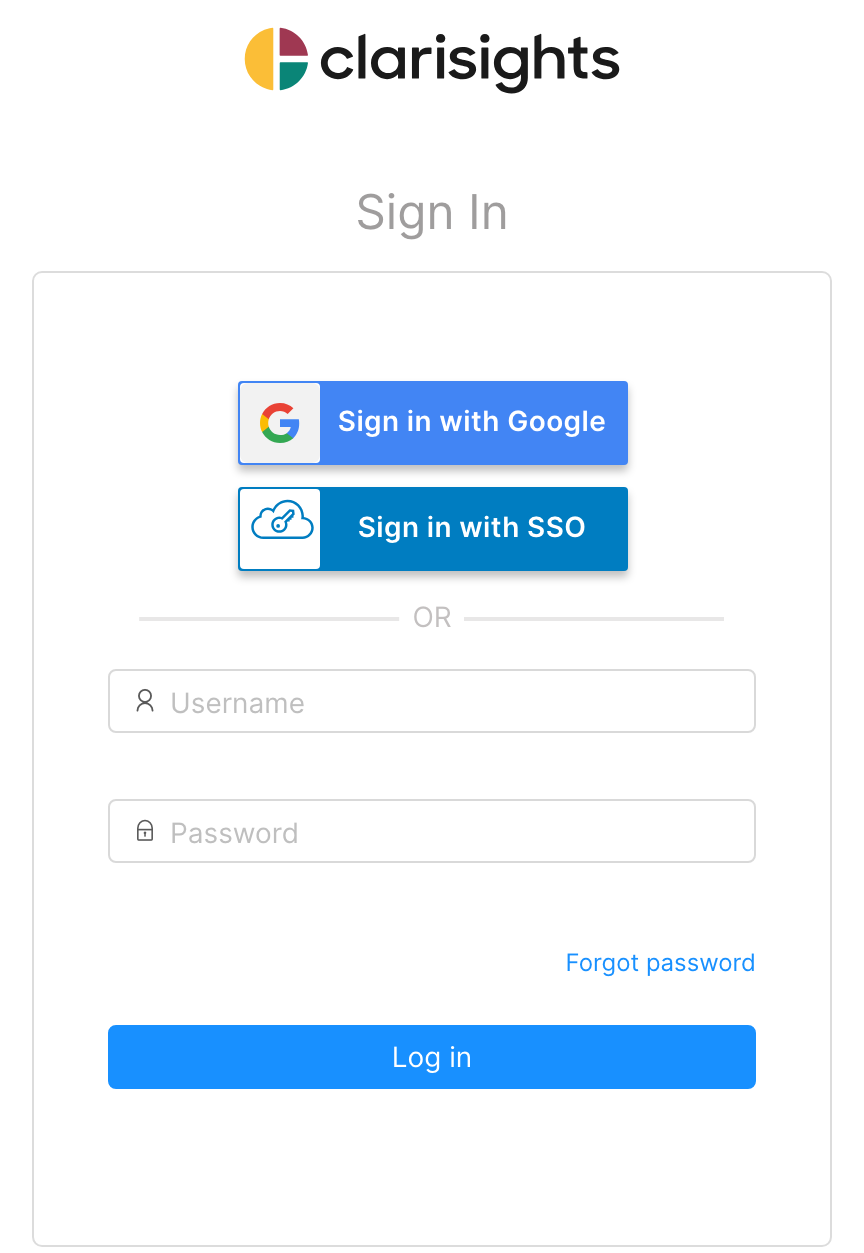
When an Admin or User Manager invites you, you receive an email inviting you to Clarisights with a link to set your password. Click it, enter a new password twice and click "Set Password". Your password must be at least 8 characters long. You are then taken to the sign-in page: enter your email address in the "Username" field, your new password, and click "Log in".
The link in the invite email is valid for 7 days. If it has expired, you will see "There was a problem resetting your password." In that case, request a new link with "Forgot password" (see below). You don't need to be invited again.
Resetting a forgotten password
Go to app.clarisights.com/login and click "Forgot password".
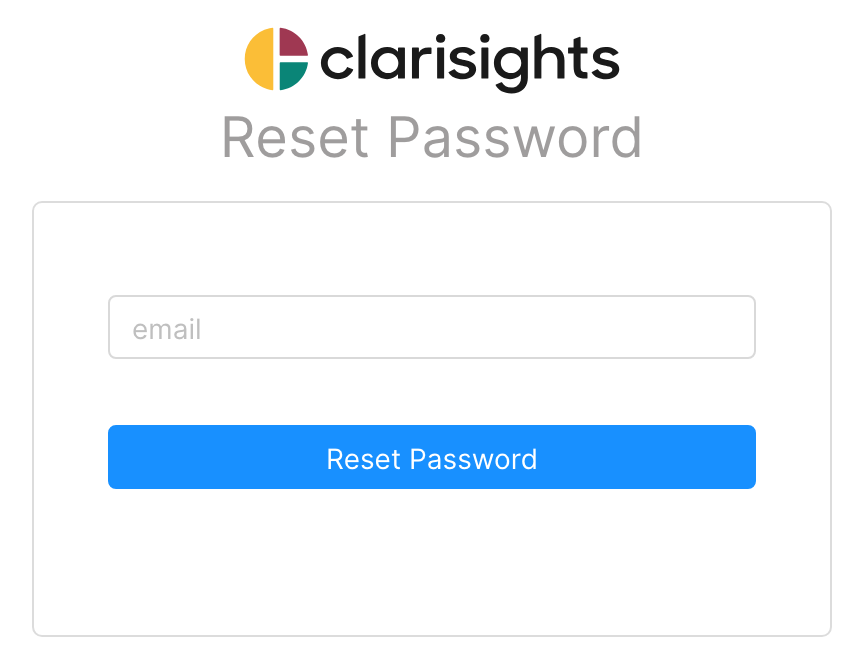
Enter the email address you use for Clarisights and click "Reset Password".
Open the "Reset password instructions" email and click the link. The link is valid for 7 days.
Enter your new password twice and click "Reset Password". You will see "Your password has successfully been reset" and can sign in with the new password.
A few things to know:
For security, Clarisights shows "Email sent with password reset instructions" even if the email address doesn't belong to a Clarisights user. If no email arrives within a few minutes, check your spam folder and make sure you typed the address you were invited with.
You can request a reset email once per minute. If you click too often, you will see "Too many password reset requests sent, try again after some time".
Only the most recent reset link works. If you requested several, use the newest email.
If you have access to more than one Clarisights workspace with the same email address, the new password applies to all of them.
"Your account is locked"
After 10 wrong passwords in a row, your account is locked. Before the last attempt, you will see "You have one more attempt before your account will be locked." Once it is locked, you can either:
Click the link in the "Unlock Instructions" email that Clarisights sends you, or
Wait one hour. The account unlocks automatically.
If you don't remember your password, reset it with "Forgot password" after unlocking.
Other messages on the sign-in page
Message | What it means and what to do |
"Invalid email or password." | The email address or password is wrong. Check for typos, or reset your password. |
"Please sign-in with other methods" | Password sign-in is not available for this email address. Either your workspace only allows Google or SSO sign-in (use "Sign in with Google" or "Sign in with SSO"), or there is no Clarisights user with this email address (check the address, or ask your admin to invite you). |
"Your session expired. Please sign in again to continue." | You were signed out after a period of inactivity. Sign in again. |
"We are preparing your account and will notify you when it's done" or "Your account is not activated yet." | Your user or your company's workspace is not active. This doesn't go away by waiting. Contact your Clarisights admin or our support team. |
If you were removed from your company's workspace, or your role was changed to "No Access", you can no longer use Clarisights. Ask your Clarisights admin to restore your access. See Adding users and managing their roles.
Still stuck?
Reach out to us via the chat widget or email support@clarisights.com with the email address you're trying to sign in with and a screenshot of the message you see.