
Troubleshooting Google Sign-In Issues
Introduction
If you're experiencing issues signing in to Clarisights with Google, this guide covers the most common causes and how to resolve them. Clarisights only lets you in with Google if the email address of your Google account matches the email address you were invited with, and if Google sign-in is enabled for your workspace.
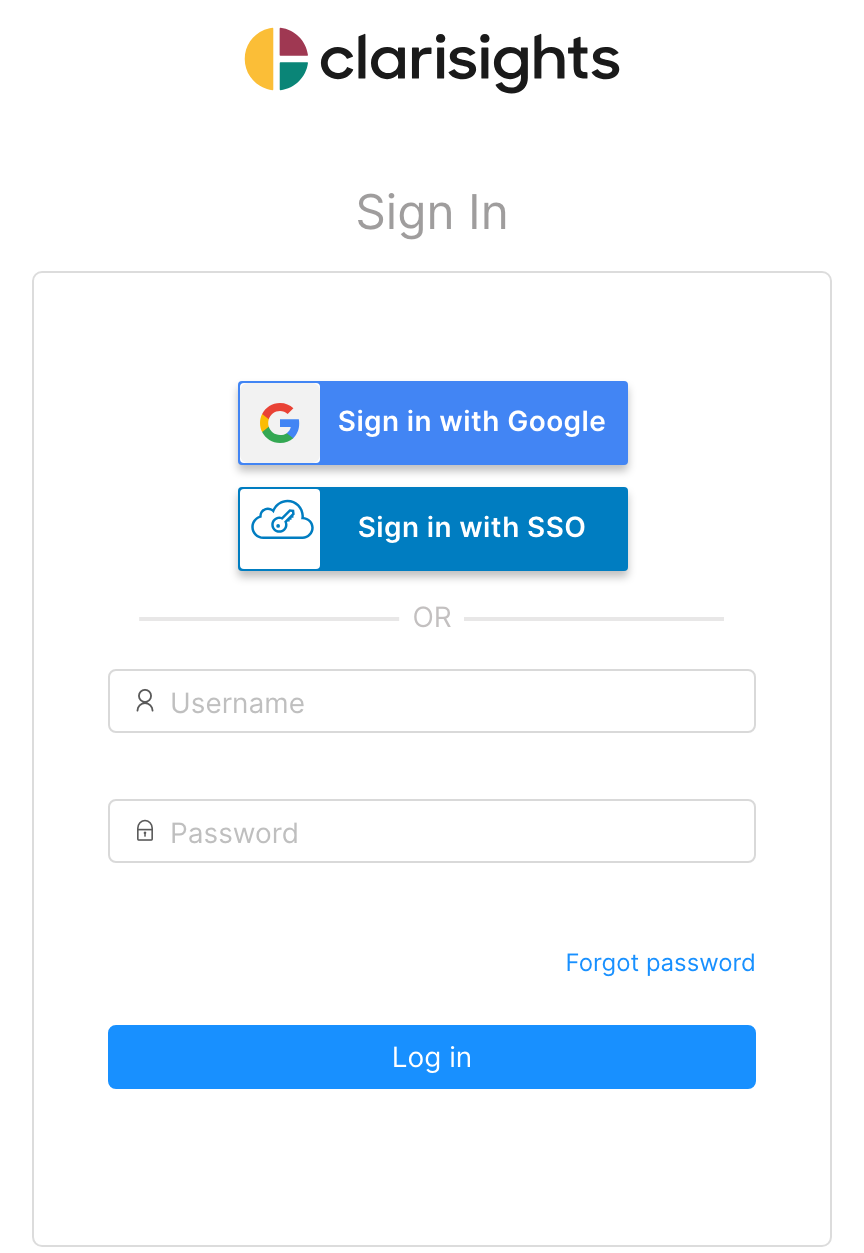
"We are preparing your account" or "Your account is not activated yet"
If you see the message "We are preparing your account and will notify you when it's done" or "Your account is not activated yet.", your Clarisights user (or your company's workspace) exists but is currently not active. This is not caused by your Google account, and it does not go away by waiting. Users invited by an admin of an active workspace can sign in right away.
What to do: contact your Clarisights admin, or reach out to us via support, and include the email address you are signing in with.
Signing In with the Wrong Google Account
If you have multiple Google accounts, your browser may automatically sign you in with the wrong one. If the Google account you pick does not match a Clarisights user, you will see an "Authentication failed!" message and stay on the sign-in page.
What to do:
Sign out of all Google accounts at accounts.google.com, or open a private browser window.
Go to app.clarisights.com/login, click Sign in with Google and choose the Google account with the exact email address that was invited to Clarisights.
You will also see "Authentication failed!" if your workspace only allows sign-in from certain email domains and your email address is on a different domain. In that case, ask your Clarisights admin to invite your company email address.
"Please sign-in using other methods"
This message means Google sign-in is not enabled for your workspace. Use the sign-in method your company uses instead: Sign in with SSO if your company signs in through an identity provider such as Okta, or your email address and password. If you have never set a password, click Forgot password on the sign-in page to set one. See Setting up Clarisights on Okta for SSO-specific steps.
Changed Email or New Google Account
Clarisights matches your Google account by email address, so signing in with a different Google account (for example after your company changed email domains) will not work with your old Clarisights user:
Ask your Clarisights admin to invite your new email address. The email address of an existing user cannot be changed.
If you use Okta/SSO, ask your Okta administrator to update your user assignment in Okta.
Signed In Successfully but No Data
If you can log in but all dashboards show "No Data Available", this is usually a team membership issue, not a sign-in problem. See Why Do I See 'No Data Available'?
Wrong Access Level
If you can see some reports but not others, or can't edit reports you should be able to edit, two separate things may need updating:
Your role in the workspace (for example Admin, Editor, Team Member or Viewer) controls what you can manage and which data you can see. Users with the Viewer role can only open reports that have been shared with them.
Your access to a specific report (Creator, Editor, Explorer or Viewer) controls what you can change in that report. It is set by whoever shares the report with you.
Contact your Clarisights admin to update your role. See Adding Users and Managing Their Roles and How to Share Reports.
Still Stuck?
Reach out to us via the chat widget or email support@clarisights.com with:
The email address you're trying to sign in with
Any error message or screenshot of what you see
Whether you use Okta/SSO or direct Google sign-in