
Connecting CleverTap on Clarisights
CleverTap is a customer engagement platform for mobile and web push, in-app, email, and SMS campaigns. Connecting your CleverTap project to Clarisights brings campaign delivery and engagement metrics into your reporting alongside your paid acquisition spend, so you can measure full-funnel performance from acquisition through retention.
At a glance
| Authentication | Account ID + Account Passcode to register the project; campaign data then arrives through CleverTap's scheduled campaign report emails sent to a unique Clarisights address |
| Permissions needed | Access to the CleverTap project's Account ID and Passcode, and permission to schedule campaign reports by email |
| Account discovery | One CleverTap project = one Clarisights account. Add additional projects by creating a new connection |
| Data freshness | Daily, as CleverTap sends each scheduled report email. Each daily report covers the previous day |
| Lookback window | Whatever date range the emailed reports cover |
| Backfill on connect | None automatically; history is only available if CleverTap reports for those dates are emailed in |
| Timezone | Set per account on connection (defaults to Asia/Kolkata; configurable) |
| Currency | Set per account on connection (defaults to USD; configurable) |
| Levels supported | Account · Campaign |
| Limited rollout | No |
Prerequisites
An active CleverTap project (any region: EU, US, India, Singapore, etc.)
The project's Account ID and Account Passcode from CleverTap
Permission in CleverTap to schedule a daily campaign report by email to an external address
Steps to Connect
Step 1: Locate your CleverTap credentials
Sign in to CleverTap and copy your project's Account ID and Passcode.
To find your Account ID (Project ID) and Passcode, see CleverTap's guide: API Quick Start Guide.
Treat the passcode like a password.
Step 2: Add CleverTap in Clarisights
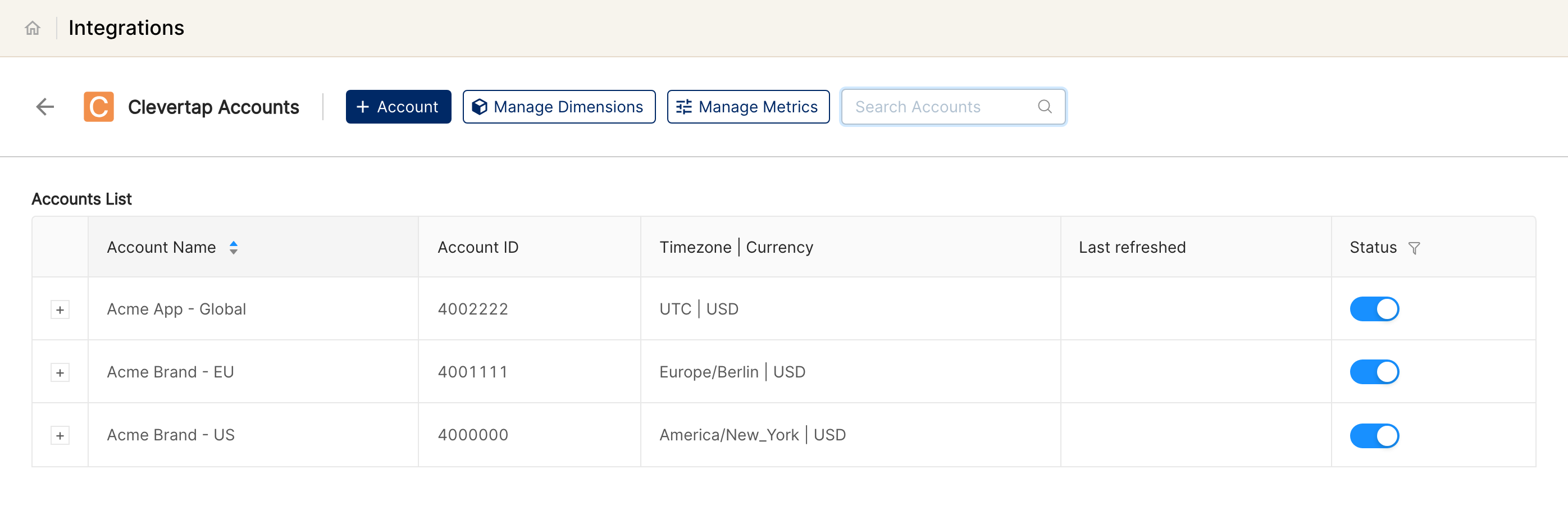
Open Integrations from the left sidebar, search for Clevertap under Set up new connection, and click + Connect. If you already have CleverTap accounts, you can also open Clevertap Accounts and click + Account.
Step 3: Enter credentials and account details
Fill in the Connect a Clevertap Source form:
Name: a friendly label for this connection
Account ID: from CleverTap
Account Passcode: from CleverTap
Currency: the currency to associate with this account in Clarisights (default
USD)Timezone: the timezone to associate with this account in Clarisights (default
Asia/Kolkata)
Click Connect Source. These fields cannot be changed later from the Integrations page, so double-check them before saving.
Step 4: Copy the account's report address
In the Clevertap Accounts list, click + next to the new account. The expanded row shows Mail: Send email to <address> to add new data. Copy that address.
Step 5: Schedule the daily campaign report in CleverTap
In CleverTap, schedule the daily campaign report as a CSV email and add the address from Step 4 as a recipient. Clarisights reads CleverTap's standard campaign report columns (Campaign Name, Campaign ID, Channel, Type, Platform, Started On, Delivered, Viewed, Clicked, Errors, Status), so keep the report in CleverTap's default format.
⚠ No data after the first report → Check that the report was sent to the exact address shown for the account, as a CSV attachment, and that CleverTap's report file name (which carries the report date) was not changed.
Verify the connection
Go to Integrations → Clevertap. The account should be listed with its Account ID, timezone, and currency.
Campaign data appears after the first scheduled report email arrives.
Quick start: open a new report, add CleverTap as the data source, group by Campaign, and add Delivered · Views · Clicks to validate.
Data available
Hierarchy
CleverTap's reporting is campaign-centric. Each campaign belongs to a project (account):
Native level (CleverTap) | Clarisights level |
Account / Project | Account |
Campaign | Campaign |
Dimensions
Dimension | Level | Description |
Account | Account | CleverTap project name you entered at connect time |
Channel | Account | The data source (CleverTap) |
Campaign | Campaign | Campaign name from the CleverTap report |
Campaign Type | Campaign | CleverTap channel of the campaign (Push, In-App, Email, SMS, etc.) |
Device Platform | Campaign | Platform / OS targeted by the campaign |
Device | Campaign | Device reported for the campaign |
Configured Status | Campaign | Campaign status from the CleverTap report |
Metrics
Metric | Description |
Delivered | Messages sent to devices / users |
Views | Messages viewed |
Clicks | Messages clicked |
Click Percentage | Clicks as a share of Delivered |
Errors | Total delivery errors |
Technical Errors / Non-Technical Errors | Errors split by type, as reported by CleverTap |
Limitations & known constraints
Email-based import: campaign data comes from CleverTap's scheduled report emails, so freshness and history depend on the reports CleverTap sends.
Single project per account: each Clarisights CleverTap account corresponds to one CleverTap project. Connect each project separately.
Currency and timezone are configured at connect time: set them correctly when adding the account, because they cannot be edited from the Integrations page afterwards.
No conversion or revenue metrics: only the delivery and engagement columns of the campaign report are imported.
Operating notes
Refresh schedule: daily, whenever CleverTap's scheduled report arrives.
Multi-account: each CleverTap project needs its own connection and its own scheduled report to that account's address.
Currency conversion: the currency you set at connect time is preserved and converted to your reporting currency by Clarisights.
Credential changes: account fields cannot be edited from the Integrations page. If your CleverTap passcode changes or a detail was entered incorrectly, contact support.
Need help?
When contacting support from the in-app messenger, please include:
The integration name, Account ID and the account's report email address (Integrations → Clevertap)
The exact error message or screenshot
The step where the issue occurred
When the issue started