
Connecting Salesforce on Clarisights
This integration connects Salesforce CRM (Sales Cloud) to Clarisights so you can pull data from any tabular Salesforce report (Leads, Opportunities, Accounts, custom objects) into Clarisights and analyze pipeline, won revenue, and conversion velocity alongside your paid media spend.
Note: this is the Sales Cloud / CRM connector. Salesforce Marketing Cloud is a separate product and is not covered by this integration.
At a glance
| Authentication | OAuth 2.0 against your Salesforce org's My Domain URL. Sandbox vs production is selected by the domain you authenticate against |
| Permissions needed | A Salesforce user with API Enabled, read access on the report folders / objects you want to import, and permission to grant the Clarisights connected app refresh-token access |
| Account discovery | One Salesforce org = one Clarisights user. Add additional orgs by running the OAuth flow for each domain |
| Data freshness | Daily |
| Lookback window | 365 days (configurable per channel) |
| Backfill on connect | Last 365 days, split into 30-day windows by default |
| Timezone | The connecting Salesforce user's timezone (read from Salesforce on connect) |
| Currency | Per-report. Salesforce currency-typed columns return the amount in the org's transactional currency, converted to your reporting currency by Clarisights |
| Levels supported | Account · (per-report dimensions and metrics) |
| Limited rollout | No |
Prerequisites
A Salesforce org (Sales Cloud Enterprise edition or higher; API access is required)
The org's My Domain URL (e.g.,
https://yourcompany.my.salesforce.comfor production, orhttps://yourcompany--sandboxname.sandbox.my.salesforce.comfor a sandbox)A Salesforce user with API Enabled permission and read access to the report folders and objects you want to import
The reports you want to import must already exist in Salesforce, must be Tabular (not Summary, Matrix, or Joined), and must be not deleted, since Clarisights only lists tabular, undeleted reports
If your org has IP restrictions or a connected-app allowlist, ask your Salesforce admin to allow the Clarisights connected app
Steps to Connect
Step 1: Find your Salesforce My Domain URL
In Salesforce, open Setup → Company Settings → My Domain. Copy your Current My Domain URL:
Production:
https://yourcompany.my.salesforce.comSandbox:
https://yourcompany--sandboxname.sandbox.my.salesforce.com
Choose carefully: the domain you authenticate against decides whether you connect to production or to a specific sandbox. There is no environment toggle in Clarisights; the domain determines the environment.
To find your My Domain details in Setup, see Salesforce Help: Change Your My Domain Details.
If you intend to connect production, double-check that the URL does not contain
sandbox.my.salesforce.com. Connecting a sandbox by mistake will sync test data instead of real CRM data.
Step 2: Start the connection in Clarisights
Open Integrations from the left sidebar, search for Salesforce under Set up new connection, and click + Connect. In the Connect a Salesforce User dialog, enter your full Domain URL from Step 1 and click Authenticate. The URL must end with .salesforce.com or .force.com.
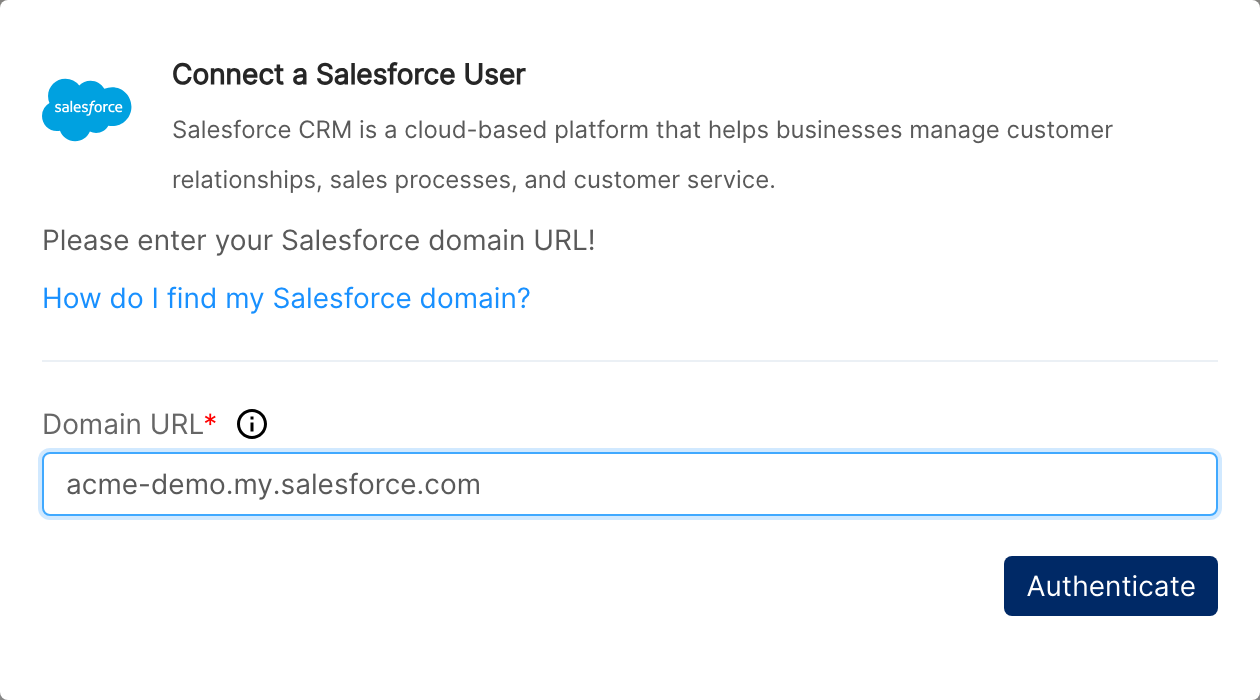
⚠ Common error: "A valid Salesforce domain URL must end with .salesforce.com or .force.com." → You pasted a non-Salesforce hostname (e.g., a Lightning experience link). Go back to Setup → My Domain and copy the Current My Domain URL exactly.
Step 3: Sign in to Salesforce and authorize
A Salesforce login window opens at your domain. Sign in as the user that should drive the integration (its permissions determine which reports are visible to Clarisights). Salesforce will display the OAuth consent screen for the Clarisights connected app, requesting:
Access basic information
Access and manage your data, used to read your reports
Perform requests on your behalf at any time, needed so Clarisights can keep syncing without re-prompting
Click Allow.
⚠ Common error: "This app is blocked by your Salesforce admin." → Your org has the connected-app allowlist enabled. Ask your Salesforce admin to allow the Clarisights connected app, then retry.
⚠ Common error: "insufficient_access_or_readonly" or login refused → The Salesforce user does not have API Enabled. A Salesforce admin must add the API Enabled permission to the user's profile or permission set, then retry.
Step 4: Confirm in Clarisights
After consent, the window closes and the user appears under Integrations → Salesforce. Clarisights uses the Salesforce user's timezone for the channel.
Step 5: Configure the Salesforce channel
Salesforce reports vary widely by org, so the channel itself is configured by your Clarisights account manager after the user is connected. The configuration tells Clarisights:
Which Salesforce tables / reports to query (one or more Tabular reports referenced by ID, or a join of multiple reports)
For each table, which date fields to filter on (e.g., Created Date, Close Date) and which metric columns to aggregate by date
Optional computed columns derived from other columns in the same row, such as the number of days between two dates (for example, days from creation to close)
The dimensions to expose
A column mapping renaming Salesforce column names to Clarisights-friendly column names
Optional date split override (defaults to 30 days; it is reduced automatically if Salesforce's 100,000-row report limit is hit)
Once the configuration is in place, Clarisights starts pulling data on the next scheduled run.
Verify the connection
Go to Integrations → Salesforce. The connected user should appear with the correct timezone.
First data appears within 24 hours of the next scheduled sync after the channel is configured.
Quick start: open a new report, add the Salesforce channel as the data source, group by the dimensions configured in the channel (e.g., Lead Source, Opportunity Stage), and add the metrics configured by date field (e.g., Amount by Close Date) to validate.
Data available
Hierarchy
Salesforce CRM data is organized by org and by report. The hierarchy depends on the reports you choose to import:
Native level (Salesforce) | Clarisights level |
Org / instance | Account (named after the channel; e.g., "Salesforce Default Channel") |
Report (Salesforce Tabular report) | Source-level table within the channel |
Report rows (per Salesforce object: Lead / Opportunity / Account / Contact / custom object) | Per-row records exposed via the configured dimensions and metrics |
Date field on the report (Created Date, Close Date, etc.) | Date of the row; each metric is exposed once per configured date field |
Dimensions
Dimensions are determined by the columns selected in your Salesforce report and listed in the channel configuration. Common dimensions include:
Dimension | Description |
Account | The Clarisights channel name (e.g., "Salesforce Default Channel") |
Timestamp | Date derived from the report's date field (Datetime values are converted to the user's timezone before being truncated to date) |
Lead Source / Campaign Source | Standard Salesforce attribution dimensions |
Opportunity Stage | Stage of the opportunity (Prospecting, Qualification, Closed Won, etc.) |
Owner | Record owner (resolved to the lookup label, not the ID) |
Industry / Account Type | Standard Account dimensions |
Custom object fields | Any field you select in the underlying Salesforce report |
Metrics
Metrics come from the metric columns configured for each date field in the channel configuration. Each metric is exposed once per date field, so you can have, e.g., Amount by Created Date and Amount by Close Date in the same report.
Metric (per date field) | Description |
Amount | Opportunity amount (in org currency, auto-converted) |
Lead Count / Opportunity Count | Count of records in the report |
Won (boolean / int) | Boolean / string columns are normalized to 1 ("true") or 0, which is useful for win-rate calculations |
Custom numeric fields | Currency, percent, double, and calculated columns are pulled as floats; other numeric types as strings until cast |
Limitations & known constraints
Tabular reports only: Clarisights only imports Tabular reports. Summary, Matrix, and Joined reports are not supported: they aren't listed and can't be configured.
100,000-row Salesforce limit: Salesforce caps each report run at 100,000 rows. When this limit is hit, Clarisights automatically fetches smaller date ranges (starting from 30 days) and retries; if a single day still exceeds the limit, the refresh fails. Narrow your reports or filter to a smaller date range to stay within the limit.
Sandbox vs production: there is no environment toggle. The integration connects to whichever environment your My Domain URL points at. To switch environments, disconnect the existing user and re-connect with the other domain.
One refresh token per org: re-running the OAuth flow against the same domain re-uses or refreshes the existing user record. To connect multiple orgs, run OAuth once per domain.
Lookup fields return the lookup label, not the ID. If you need the ID, expose it as a separate column in the source report.
Currency-typed columns are pulled as their amount value (not the formatted string). Multi-currency orgs return amounts in the record's transactional currency.
Daily refresh only: this integration runs once per day; intra-day Salesforce changes appear on the next sync.
Operating notes
Refresh schedule: daily. Lookback default is 365 days, split into 30-day windows.
Token refresh: access tokens are short-lived. Clarisights refreshes them automatically at the start of every run. If the refresh token is revoked, the integration starts failing with auth errors and you'll need to re-authenticate.
Adding new reports: ask your Clarisights account manager to update the channel configuration with the new report ID, the date fields to filter on, the metrics to aggregate, and any dimensions to expose.
Joining reports: when you need a joined view (e.g., Opportunities + Accounts), your Clarisights account manager can configure a join in the channel: a base report and one or more joined reports with matching key fields. Clarisights will run each report and outer-join the results.
Currency conversion: Salesforce-org currency amounts are converted to your reporting currency by Clarisights at query time.
Credential rotation: if a Salesforce admin revokes the connected-app authorization, re-run the connection from the Salesforce tile on the Integrations page with the same domain. Existing channel configuration is preserved.
Need help?
When contacting support from the in-app messenger, please include:
The integration name and Salesforce user (Integrations → Salesforce)
Whether you're connecting production or a sandbox, and the My Domain URL you used
The exact error message or screenshot
If a report fails: the report ID, date range, and the date field you're filtering on
When the issue started