
Connecting Outbrain on Clarisights
Outbrain is a native advertising platform that places promoted content across major publisher sites. Connecting Outbrain to Clarisights lets you analyze spend, engagement, and conversion performance from your Amplify campaigns alongside your other paid channels.
At a glance
Authentication | Username + password (Outbrain login) |
Permissions needed | Account must have Amplify API access enabled |
Account discovery | Automatic: every account linked to your login is offered |
Data freshness | Daily |
Lookback window | 90 days |
Backfill on connect | Last 90 days |
Timezone | UTC |
Currency | Account currency (set in Outbrain) |
Levels supported | Account · Campaign · Promoted Link · Site |
Limited rollout | No |
Prerequisites
An active Outbrain Amplify advertiser account at my.outbrain.com
Amplify API access enabled on your account (confirm with your Outbrain Account Manager if unsure)
The username and password you use to log in to my.outbrain.com
Steps to Connect
Step 1: Verify Amplify API access
Log in to my.outbrain.com. In the top-right user menu, look for Amplify API Token. If it's missing, your account does not yet have Amplify API access.
⚠ "Amplify API Token" option is missing → Contact your Outbrain Account Manager to enable API access. Once enabled it usually appears within 1 to 2 hours.
Step 2: Add Outbrain in Clarisights
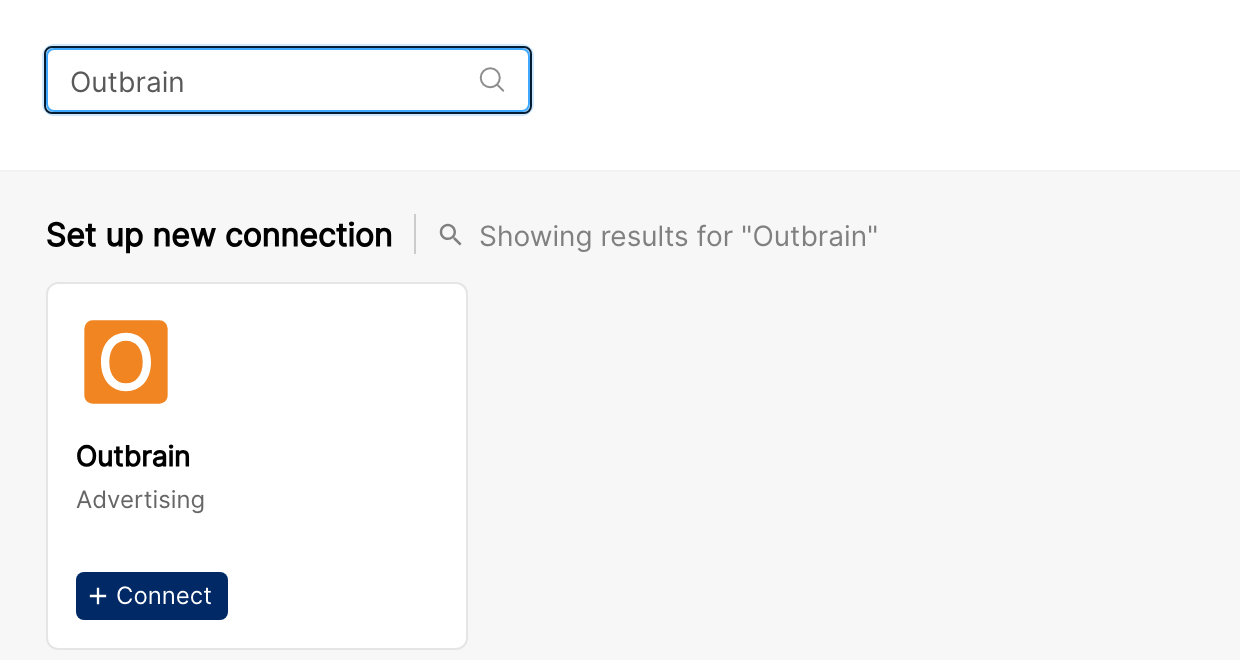
In Clarisights, open Integrations from the left sidebar, search for Outbrain under Set up new connection, and click + Connect.
Step 3: Enter your Outbrain credentials
In the Connect an Outbrain Source form, enter your Outbrain Username and Password and click Connect Source. Clarisights exchanges these for an Amplify API token and stores the password encrypted so it can renew the token automatically.
⚠ "Access denied, you don't have permission to access the specified resource" → Your Outbrain user role doesn't have API permissions. Ask your Outbrain admin to either grant you API access or have an admin user complete the connection. After role changes, allow 1 to 2 hours for permissions to sync. To verify manually, log in to my.outbrain.com and confirm Amplify API Token appears in your top-right menu.
Step 4: Accounts are added automatically
Clarisights discovers every Amplify account your login has access to and adds them to the Outbrain accounts list. New accounts are picked up by a daily check. Use the status switch on each account to stop importing an account you don't need.
Verify the connection
Go to Integrations → Outbrain. Each discovered account should be listed with its status switched on.
First data appears within 24 hours, after the next scheduled sync.
Quick start: create a new report, add Outbrain as the data source, and add Account · Campaign · Impressions · Clicks · Spend.
Data available
Hierarchy
How Outbrain's native levels map to the standard Clarisights levels:
Native level (Outbrain) | Clarisights level |
Account | Account |
Campaign | Campaign and Ad Group (Outbrain has no native Ad Group; Ad Group fields alias to Campaign) |
Promoted Link | Ad |
Site | Breakdown only, not a separate hierarchy level |
Dimensions
Dimension | Level | Description |
Account / Account ID | Account | Outbrain advertiser identifier |
Campaign / Campaign ID | Campaign | Campaign name and ID |
Campaign Status | Campaign | Active, Paused, etc. |
Campaign Budget | Campaign | Configured campaign budget |
Campaign On-Air Reason | Campaign | Reason a campaign is or isn't serving |
Campaign Start / End Date | Campaign | Configured flight dates |
Promoted Link / ID | Promoted Link | Individual creative |
Promoted Link URL | Promoted Link | Destination URL |
Promoted Link Image | Promoted Link | Creative thumbnail |
Promoted Link Approval Status | Promoted Link | Approved / pending / rejected |
Site | Site | Publisher site where the ad served |
Metrics
Metric | Description |
Impressions | Total ad impressions |
Clicks | Total clicks |
Spend | Total spend in account currency |
Conversions (by conversion date) | Conversions counted on the day they occurred |
Conversions (by click date) | Conversions attributed back to the click date (if enabled) |
Total Conversions | All counted conversions |
Conversion Value | Reported revenue / value |
View-through Conversions | Conversions attributed to a view rather than a click |
Limitations & known constraints
API rate limits: Clarisights respects Outbrain's per-account rate limits. During heavy load, syncs may queue and complete over the next 1 to 2 hours.
Non-standard creative formats: Carousel ads and other Outbrain formats that don't expose a standard Promoted Link ID are not synced. Standard Promoted Links are fully supported.
Reporting delay: Outbrain typically reconciles performance data 4 to 6 hours after the impression or click occurs.
Lookback: only the last 90 days are available via the Outbrain API. Older history cannot be fetched.
Token validity: Amplify API tokens expire periodically. Clarisights refreshes them automatically, but if you change your Outbrain password you'll need to re-enter credentials.
Tag editing: Custom tags / segment names from Outbrain are read-only in Clarisights; edit them in Outbrain.
Operating notes
Refresh schedule: daily.
Lookback: 90 days.
Multi-account: every account linked to your Outbrain login can be connected from a single credential. Add additional logins (e.g., separate teams) by adding a second user.
Currency conversion: native account currency is preserved on ingest and converted to your reporting currency by Clarisights.
Credential rotation: if you change your Outbrain password, edit the user under Integrations → Outbrain and enter the new password.
Need help?
When contacting support from the in-app messenger, please include:
The integration name and account ID (Integrations → Outbrain)
The exact error message or screenshot
The step where the issue occurred
When the issue started