
Connecting AppNexus (Xandr) on Clarisights
Xandr (formerly AppNexus, now part of Microsoft) is a programmatic advertising platform used to plan, buy, and measure display and video campaigns. Connecting Xandr to Clarisights lets you analyze impressions, clicks, media cost, and conversions for each line item and campaign alongside your other paid channels.
⚠ Platform status: Microsoft retired its Xandr buying platform (Microsoft Invest DSP) on February 28, 2026, and has announced that the legacy Xandr reports, including the Advertiser Analytics report Clarisights reads, will stop including Microsoft Monetize data from early 2027. Existing Clarisights connections keep running for as long as Xandr returns data for your advertisers. Talk to your Clarisights account manager before onboarding new Xandr advertisers or planning long-running reports on this channel.
At a glance
| Authentication | Username + password (Xandr / AppNexus login) |
| Permissions needed | Xandr user with API access and read permission on the advertisers you want to report on |
| Account discovery | Automatic: every advertiser visible to your Xandr login is added when you connect |
| Data freshness | Daily |
| Lookback window | Each refresh re-pulls today and yesterday |
| Backfill on connect | Up to 30 days of history, on request from Clarisights support |
| Timezone | The advertiser's timezone in Xandr (the timezone you pick on connect is used only if the advertiser has none set) |
| Currency | The advertiser's default currency in Xandr (the currency you pick on connect is used only if the advertiser has none set); converted to your reporting currency by Clarisights |
| Levels supported | Account (Advertiser) · Line Item · Campaign |
| Limited rollout | No, but see the platform status note above |
Prerequisites
An active Xandr (formerly AppNexus) login at monetize.xandr.com with API access enabled
Read permission on the advertisers, line items, and campaigns you want to report on
Knowledge of the timezone and reporting currency configured for your advertisers in Xandr
Steps to Connect
Step 1: Confirm Xandr API access
Log in to Xandr and confirm your user can call the Xandr API. If you're unsure, ask your Xandr account manager to enable API access for your user.
⚠ "Please check your credentials" when connecting → The most common causes are a typo in the username or password, or a Xandr login that does not have API access enabled. Have a Xandr admin grant API permissions, then retry.
Step 2: Add Xandr in Clarisights
In Clarisights, open Integrations from the left sidebar. Under Set up new connection, search for Xandr and click + Connect on its card. If Xandr is already connected, open it from Manage connected channels and click + Account.
Step 3: Enter your Xandr credentials
Enter your Xandr Username (email) and Password, then choose a Currency and Timezone. Clarisights uses each advertiser's own currency and timezone from Xandr; the values you pick here are only a fallback for advertisers that have none set. Click Connect Source.
Clarisights authenticates with Xandr and adds every advertiser visible to your login. Each advertiser appears as a separate Account in Clarisights.
⚠ Currency / timezone mismatch → If an advertiser has no currency or timezone in Xandr and the fallback values you picked don't match how you report on it, cost and dates won't reconcile with Xandr UI totals. Confirm both with your Xandr admin before connecting.
Step 4: Choose which advertisers to sync
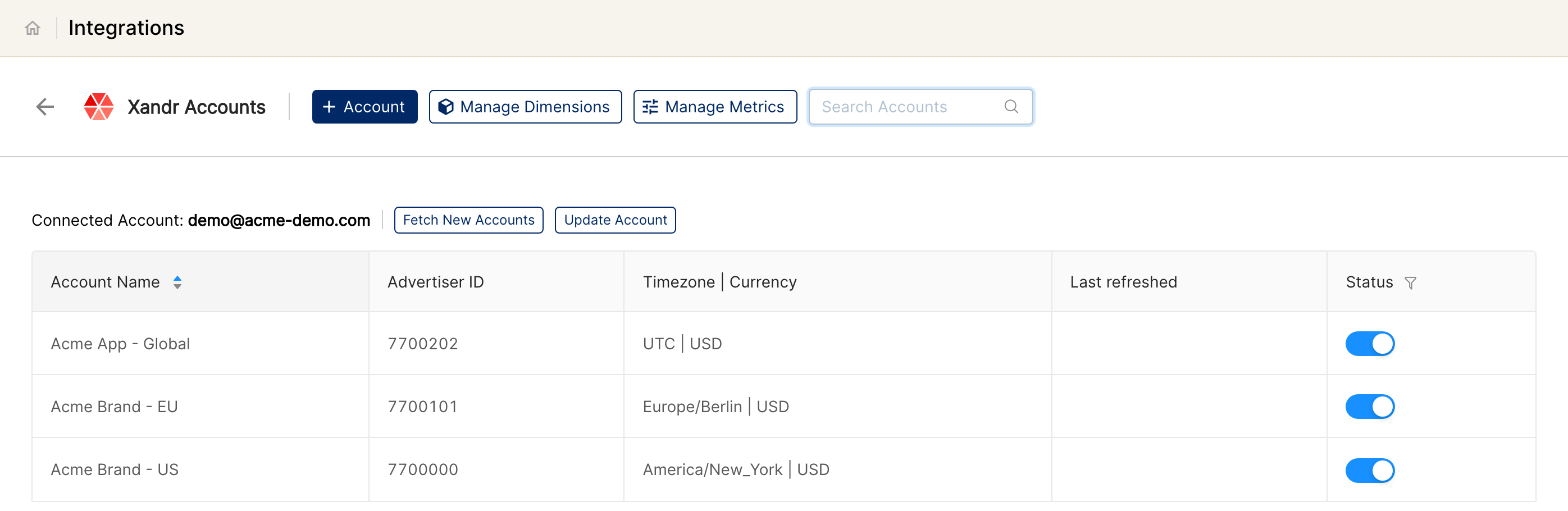
All advertisers are connected and active by default. Use the Status toggle next to an advertiser to stop syncing it. When new advertisers are added to your Xandr login later, click Fetch New Accounts to bring them in.
Verify the connection
Go to Integrations → Xandr. Each connected advertiser is listed with its Advertiser ID, timezone, and currency, and its Status toggle is on.
First data appears within 24 hours, after the next scheduled sync.
Quick start: create a new report, add Xandr as the data source, and add Account · Line Item · Campaign · Impressions · Clicks · Cost.
Data available
Hierarchy
How Xandr's native levels map to Clarisights levels:
Native level (Xandr) | Clarisights level |
Advertiser | Account |
Line Item | Line Item (the buying unit; each line item belongs to an advertiser) |
Campaign | Campaign (each campaign belongs to a line item) |
Creative | Not available (reporting stops at Campaign) |
Dimensions
Dimension | Level | Description |
Account / Account ID | Account | Xandr advertiser name and ID |
Line Item / Line Item ID | Line Item | Line item name and ID |
Campaign / Campaign ID | Campaign | Campaign name and ID |
Currency | Account | Reporting currency of the advertiser |
Timezone | Account | Reporting timezone of the advertiser |
Metrics
Pulled daily from Xandr's Advertiser Analytics report:
Metric | Description |
Impressions | Total impressions served |
Clicks | Total clicks |
Cost | Media cost, converted to your reporting currency |
Total Conversions | Total post-click and post-view conversions |
Total Revenue | The value Xandr reports as advertiser spend, converted to your reporting currency |
eCPC · eCPA · CTR · CVR · Clicks Conversion Rate | Derived metrics calculated from the base metrics above |
Limitations & known constraints
Platform sunset: Microsoft retired the Microsoft Invest DSP in February 2026, and legacy Xandr reports stop including Microsoft Monetize data from early 2027. Plan migration paths for long-running reports.
Advertiser Analytics only: Clarisights reads Xandr's Advertiser Analytics report. Other Xandr report types are not ingested.
No creative level and no segment breakdowns: creative, geography, device, browser, and inventory breakdowns are not available.
Currency / timezone fixed at connection: each advertiser's currency and timezone are captured when it is first added. If you change them in Xandr afterwards, contact Clarisights support to update the account.
Daily granularity: hourly breakdowns are not available.
Operating notes
Refresh schedule: daily.
Lookback: each refresh re-pulls today and yesterday, so late adjustments from the previous day are picked up. Up to 30 days of history can be backfilled on request.
Multi-account: every advertiser visible to a single Xandr login is connected from one set of credentials. Add another Xandr user with + Account to onboard advertisers your primary login can't see.
Currency conversion: native advertiser currency is preserved on ingest and converted to your reporting currency by Clarisights.
Credential rotation: when your Xandr password changes, click Update Account next to the connected login in Integrations → Xandr and enter the new password. API tokens are short-lived and refreshed automatically.
Need help?
When contacting support from the in-app messenger, please include:
The integration name and advertiser ID (Integrations → Xandr)
The exact error message or screenshot
The step where the issue occurred
When the issue started