
Creating a report using Clarisights
Create the report
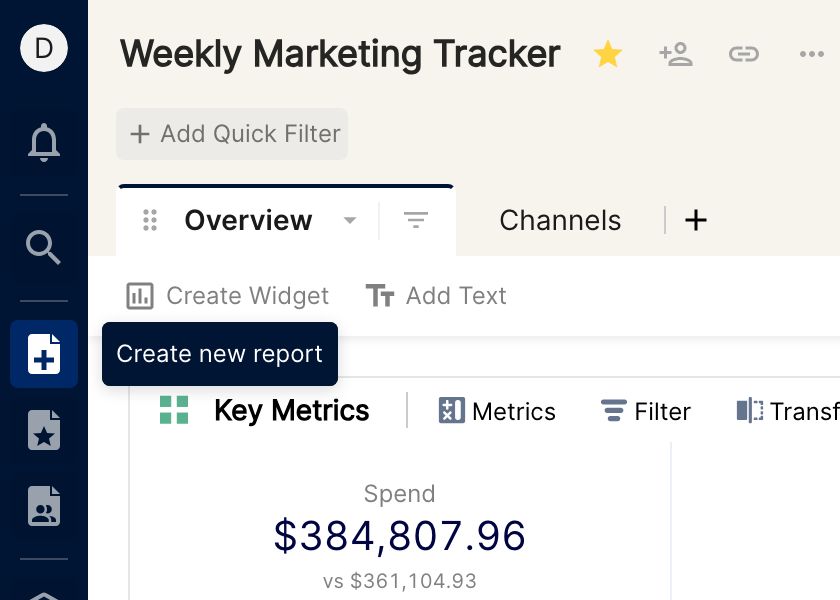
Click the Create new report icon (a page with a plus sign) in the left sidebar.
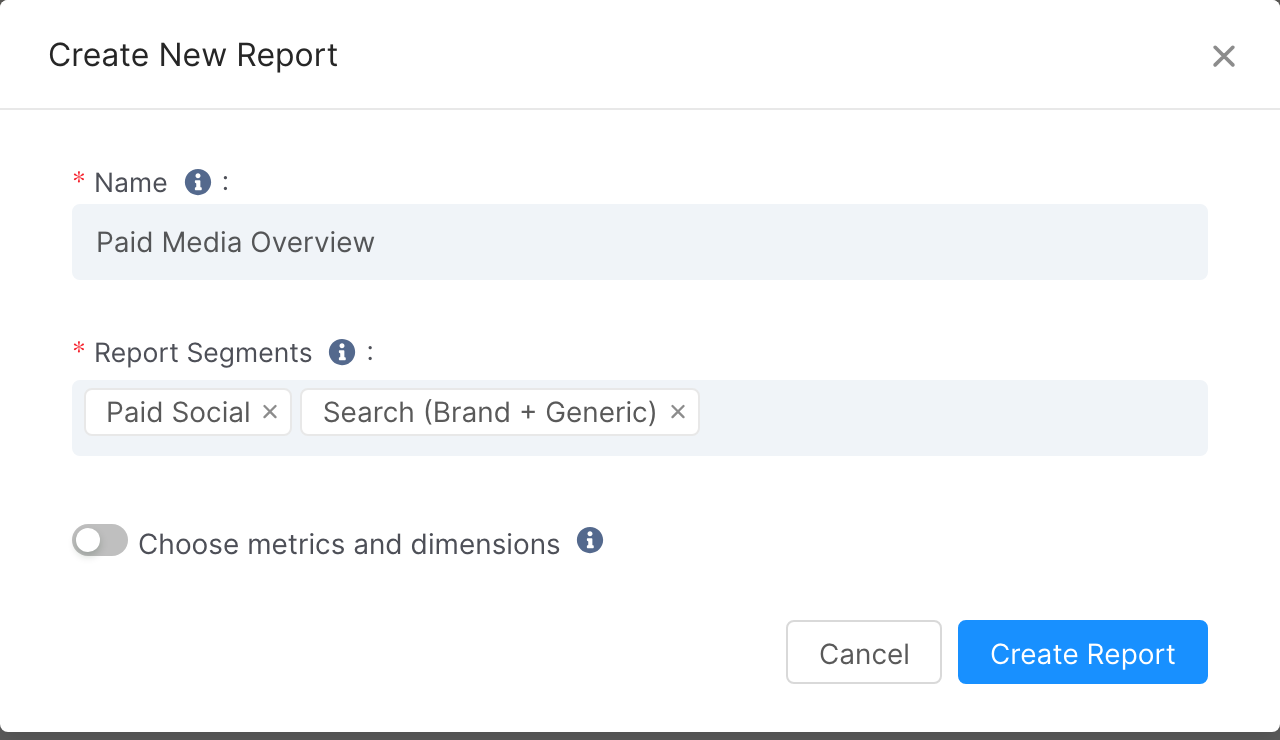
In the popup window, set the name and choose the report segments (data sources) you want to use. The list contains the advertising channels integrated in your company, and you can select any number of them.
Note: analytics sources are not listed here, because they're joined directly with each advertising channel.
Optionally, choose the metrics and dimensions to include in the report. We strongly recommend enabling this option, as it keeps report building and exploration focused and uncluttered. We also recommend creating a metric group for your KPIs and picking it when choosing metrics.
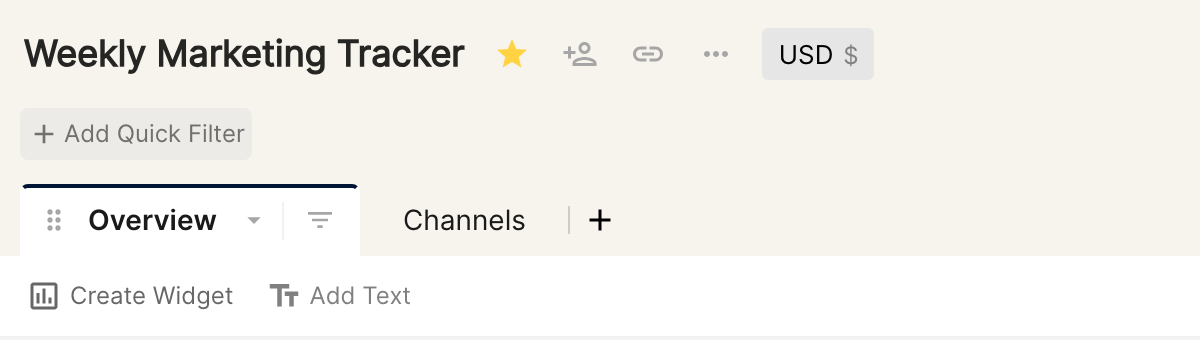
Click Create Report. A new report with an empty tab is created.
To change these settings later, see Editing report properties. For the elements of a report, see the Report Glossary.
Add a widget
Click Create Widget.
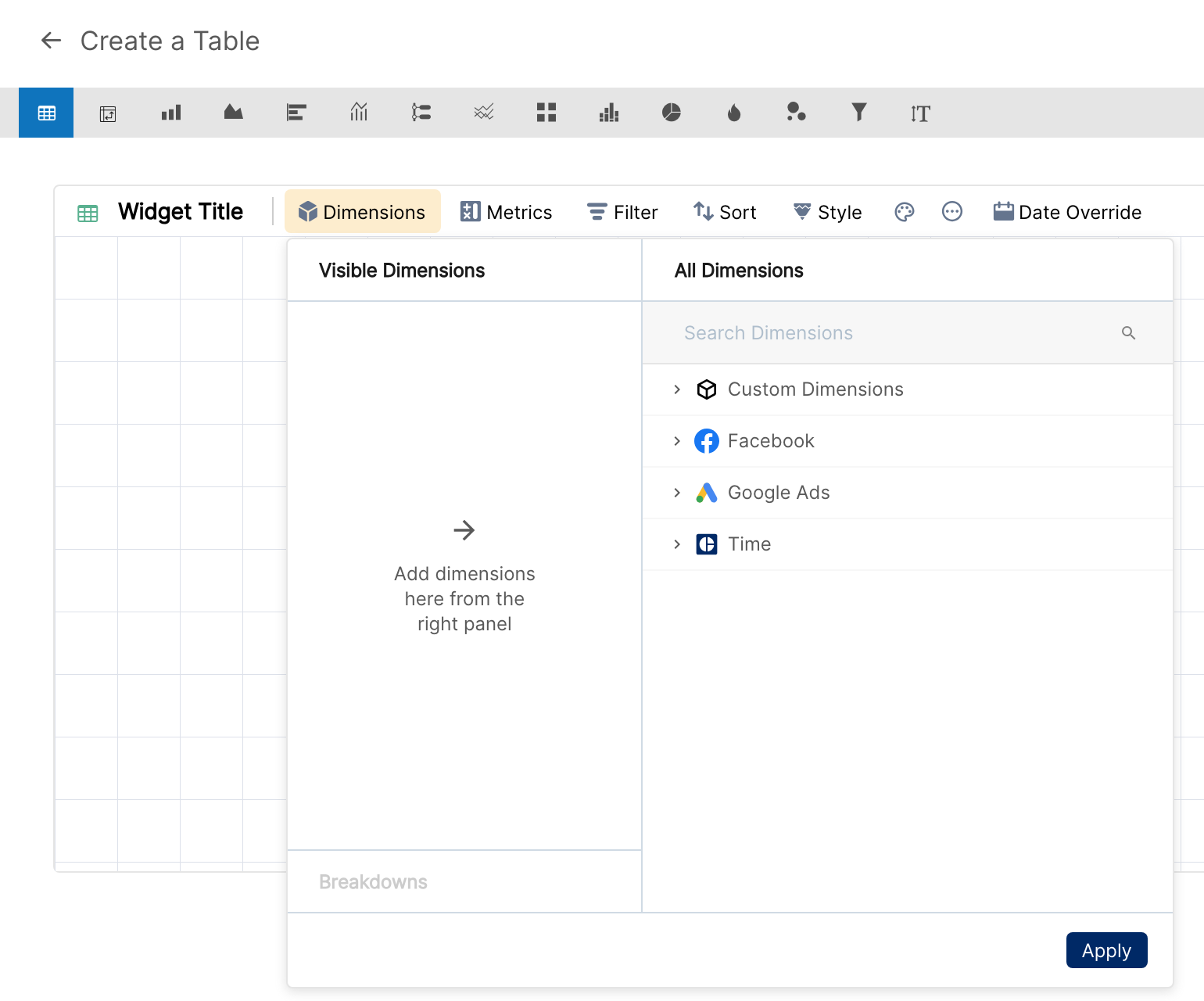
The widget creation view opens. A new widget is a table by default; the icons in the bar at the top let you pick a different widget type.
To add dimensions, click Dimensions and search for the dimension you need, or choose one from the list, which is grouped by advertising channel. Click Apply once you've chosen. For this report, we choose Channel.
To add metrics, click Metrics and search for the metrics you need, or choose them from the list, which is grouped by advertising/analytics channel. Click Apply once you've chosen. For this report, we choose Cost and Impressions.
Click Done.
Add a breakdown
Open the Dimensions panel again, click Breakdowns at the bottom of the panel and choose the breakdown dimension. Click Apply. For this report, we choose Week. To view the broken-down data, click the > symbol next to the dimension values.
Choose the date range
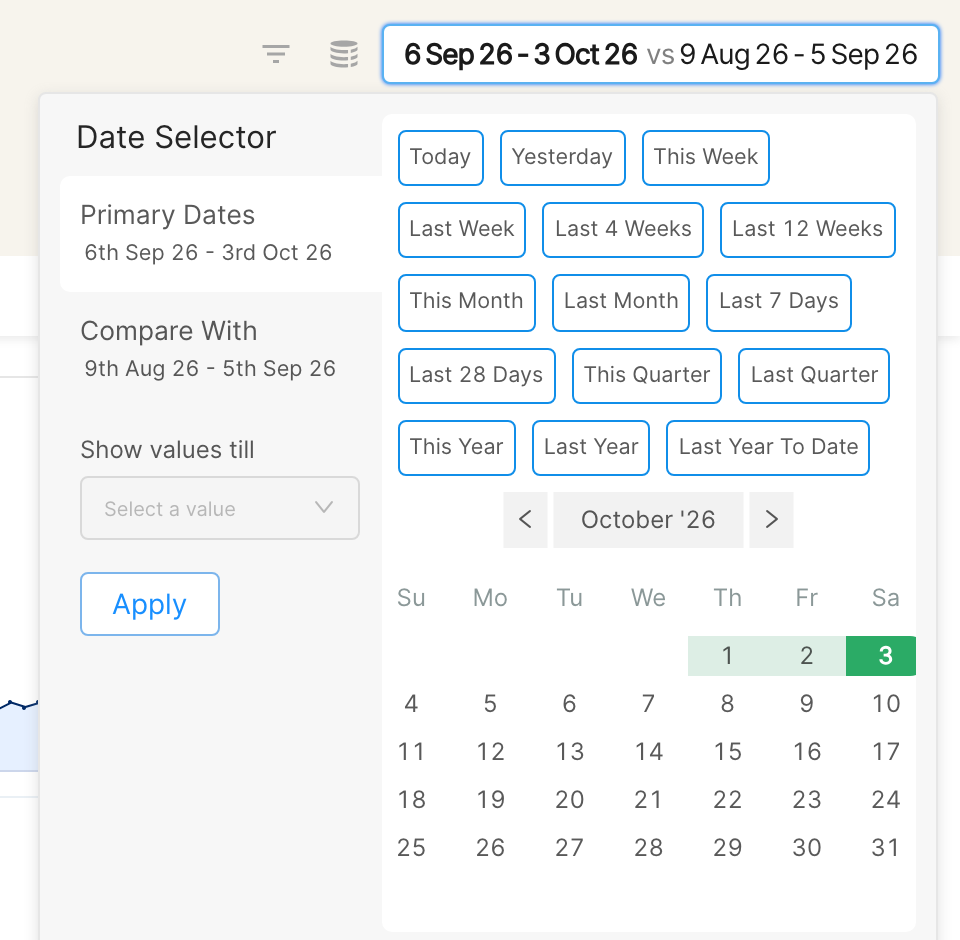
Click the date range box in the top bar, select the date range you want, and click Apply. For this report, we choose Last Month. To compare two date ranges, see Displaying additional data: aggregate, share and comparison.
Congratulations, you have created your first report in Clarisights.
Next, explore the collection on configuring and structuring your reports, starting with Configure Quick Filters.