
Connecting LinkedIn Ads on Clarisights
Connect your LinkedIn Ads accounts to monitor campaign performance, audience engagement, and conversion metrics across every LinkedIn ad format alongside the rest of your marketing stack.
At a glance
| Authentication | OAuth 2.0 |
| Permissions needed | Account Manager, Campaign Manager, Creative Manager, or Viewer role on each ad account |
| Account discovery | Automatic on credential validation |
| Data freshness | Daily (one scheduled refresh per day) |
| Lookback window | Each daily refresh re-pulls the last 30 days plus today |
| Backfill on connect | Last 30 days (older history can be requested from support) |
| Timezone | UTC (LinkedIn reports daily data in UTC) |
| Currency | Account native currency (auto-converted via Currency Conversion) |
| Levels supported | Account · Campaign Group · Campaign · Creative |
| Limited rollout | No |
Prerequisites
An active LinkedIn Ads account managed in Campaign Manager
A user role on the ad account: Account Manager, Campaign Manager, Creative Manager, or Viewer
Permission to authorize third-party apps on your LinkedIn profile
Steps to Connect
Step 1: Sign in with LinkedIn from Clarisights
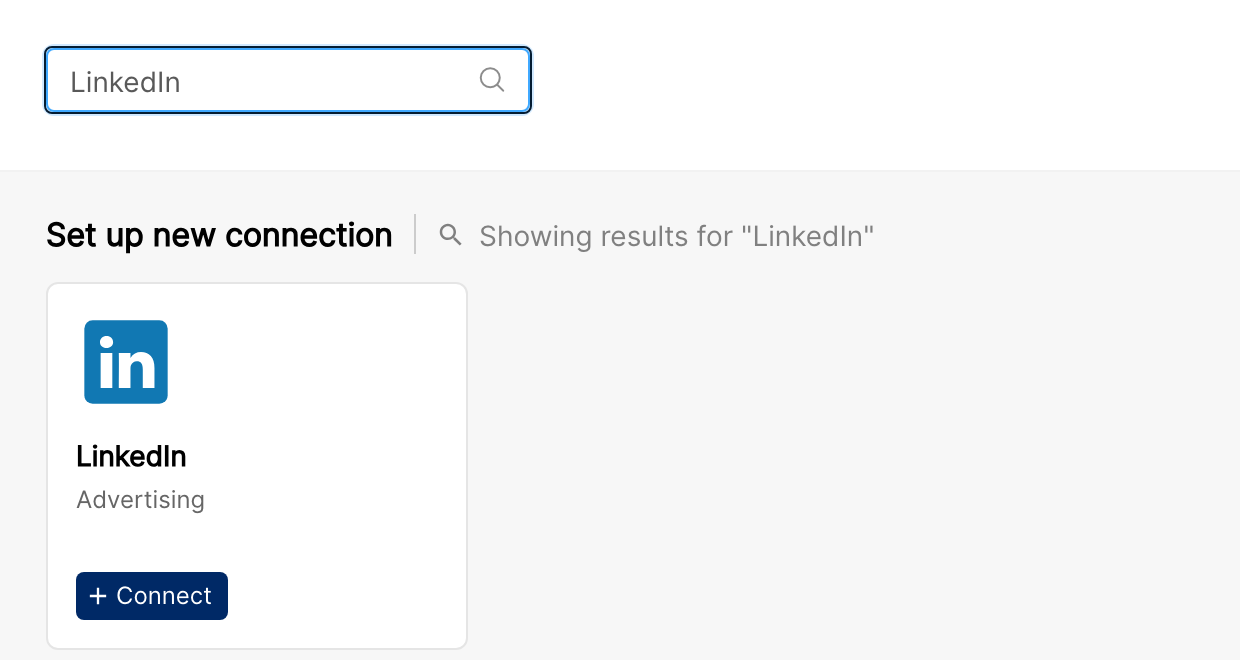
In Clarisights, open Integrations (the database-stack icon in the left sidebar). Under Set up new connection, search for LinkedIn and click + Connect on the LinkedIn card. A LinkedIn sign-in window opens. Sign in with the LinkedIn account that has access to the ad accounts you want to connect.
Step 2: Authorize Clarisights
LinkedIn will display a permission screen listing the access Clarisights requires (read access to ad reporting, ad accounts, and basic profile). Click Allow.
⚠ Common error: "You don't have permission to authorize this app." → Your LinkedIn profile has third-party app authorization disabled. Ask your LinkedIn admin to enable it, or use a different LinkedIn account that has the required role on the ad accounts.
Step 3: Select ad accounts
After authorization, Clarisights automatically discovers every ad account your LinkedIn user has access to and lists them with their account ID, timezone and currency. Select the accounts you want to connect and click Connect Accounts.
Verify the connection
Open Integrations and, under Manage connected channels, open LinkedIn. Each account you connected is listed under Connected Account with its Status switch turned on. After the first sync, the Last refreshed column shows when data was last pulled.
First data appears within 24 hours of the next scheduled sync.
Quick start: create a new report, add LinkedIn as the data source, and add Account · Campaign · Impressions · Clicks · Spend.
Data available
Hierarchy
How LinkedIn's native levels map to the standard Clarisights levels:
Native level (LinkedIn) | Clarisights level |
Account | Account |
Campaign Group | Campaign |
Campaign | Ad Group |
Creative | Ad |
Dimensions
Dimension | Level | Description |
Account Type | Account | Type of LinkedIn ad account (Enterprise, SMB, etc.) |
Account Currency | Account | Billing currency configured for the account |
Account Status | Account | Active, Paused, etc. |
Campaign Status | Campaign | Status of the campaign group (Active, Paused, Archived) |
Campaign Budget | Campaign | Total budget allocated to the campaign group |
Cost Type | Ad Group | Pricing model (CPC, CPM, CPA) |
Objective Type | Ad Group | Objective of the LinkedIn campaign (Website Visits, Engagement, Lead Generation, etc.) |
Daily Budget Currency | Ad Group | Currency of the LinkedIn campaign's daily budget |
Total Budget Amount | Ad Group | Total budget set on the LinkedIn campaign |
Adgroup Format | Ad Group | Sponsored Content, Sponsored Messaging, Lead Gen, Document Ad, Video, etc. |
Pacing Strategy | Ad Group | Standard or Accelerated |
Adgroup Type | Ad Group | Sponsored Content, InMail, Text Ads, etc. |
Adgroup Status | Ad Group | Status of the LinkedIn campaign (Active, Paused, Archived, etc.) |
Created By / Created At | Ad | Author and creation timestamp |
Intended Status | Ad | Intended status of the creative |
Is Serving | Ad | Whether the creative is actively serving |
Last Modified By / Last Modified At | Ad | Most recent editor and timestamp |
Ad Preview | Ad | Visual preview of the ad |
Leadgen Call To Action Destination | Ad | Destination URL for leadgen CTA |
Leadgen Call To Action Label | Ad | Label text on the leadgen CTA button |
Metrics
Core engagement
Metric | Description |
Impressions | Total ad displays |
Clicks | Total clicks |
Spend | Total spend in account currency |
Click breakdowns
Metric | Description |
Action Clicks | Clicks on ad-specific actions |
AdUnit Clicks | Clicks within the ad unit |
Card Clicks | Clicks on card-formatted ads |
Landing Page Clicks | Clicks that led to the landing page |
Headline Clicks | Clicks on the ad headline |
Text URL Clicks | Clicks on text-based URLs |
Company Page Clicks | Clicks navigating to a company page |
Download Clicks | Clicks on download CTAs |
Engagements & social actions
Metric | Description |
Total Engagements | Sum of all engagement actions |
Likes / Reactions | Total likes and emoji reactions |
Comments / Comment Likes | Comments on the ad and likes on those comments |
Shares | Times the ad was shared |
Follows | New followers gained |
Other Engagements | Engagements not categorized elsewhere |
Lead generation & conversions
Metric | Description |
One Click Lead Form Opens / Leads | Lead-gen form opens and submissions |
Leadgen Mail Contact Info Shares / Interested Clicks | Leadgen mail engagement signals |
Job Applications / Apply Clicks | Direct, post-click, and post-view variants |
Registrations | Form registrations (post-click and post-view variants) |
External Website Conversions | Off-platform conversions (post-click and post-view) |
Qualified Leads / Valid Work Email Leads / Talent Leads | Lead quality classifications |
Document & video
Metric | Description |
Document Completions | Document downloads completed (with quartile variants) |
Video Starts / Views / Completions | Video engagement (with quartile variants) |
Full Screen Plays | Videos played in full screen |
Sponsored Messaging
Metric | Description |
Sends | InMail messages sent |
Opens | InMail opens |
Custom conversions
Each conversion you set up in LinkedIn appears in Clarisights as four metrics:
Conv - [Conversion Name] (Total): total conversions
Conv - [Conversion Name] (Click): attributed to ad clicks
Conv - [Conversion Name] (View): attributed to ad views
Conv - [Conversion Name] (Value): total value of those conversions
Viral / organic variants
Most engagement metrics also have a "Viral" counterpart that tracks engagement driven by organic resharing of your ads (e.g., Viral Clicks, Viral Impressions, Viral Likes, Viral Comments).
Spend in local currency
Metric | Description |
Cost in Local Currency | Spend in the account's native currency |
Conversion Value in Local Currency | Conversion value in the account's currency |
Limitations & known constraints
Reporting delay: Performance data is typically available within 24 hours but can take up to 48 hours to fully reconcile.
Shared conversions: a conversion created in one ad account and shared with another is reported for both, as long as the account that owns the conversion is also connected to Clarisights. Conversions owned by an account that is not connected may be missing.
Expired or revoked access: LinkedIn sign-ins expire after one year, and access also ends if you revoke Clarisights in your LinkedIn settings or lose your role on the ad accounts. When that happens, LinkedIn data stops updating until you reconnect (see Operating notes).
Operating notes
Refresh schedule: data is pulled once a day.
Lookback: each refresh re-pulls the last 30 days plus today, so late conversions and LinkedIn restatements are picked up.
Adding new ad accounts: new LinkedIn ad accounts are not added automatically. Open LinkedIn from Manage connected channels, click + Account, sign in again, then select the new accounts and click Connect Accounts.
Currency conversion: native amounts are pulled as-is and converted to your reporting currency by Clarisights.
Reconnecting: Clarisights refreshes LinkedIn access automatically for up to one year after you sign in. If LinkedIn data stops updating (the sign-in expired, was revoked, or the user lost access to the ad accounts), open LinkedIn from Manage connected channels, click Refresh Token next to the connected user and sign in to LinkedIn again with a user that still has a role on the ad accounts. Data resumes on the next scheduled refresh.
Need help?
When contacting support from the in-app messenger, please include:
The integration name and account ID (Integrations → LinkedIn)
The exact error message or screenshot
The step where the issue occurred
When the issue started