
Connecting Spotify Ads on Clarisights
Connect your Spotify Ad Studio accounts to monitor audio, video, and podcast ad performance, audience engagement, and reach metrics across every Spotify ad format alongside the rest of your marketing stack.
At a glance
| Authentication | OAuth 2.0 (Spotify Ads API) |
| Permissions needed | User access to one or more Spotify Ads businesses and ad accounts |
| Account discovery | Automatic when you sign in: every ad account under every business your user can see is offered |
| Data freshness | Daily (one scheduled refresh per day) |
| Lookback window | Each daily refresh re-pulls the last 7 days plus today |
| Backfill on connect | Last 7 days (older history can be requested from support) |
| Timezone | UTC (reports are requested one UTC day at a time) |
| Currency | Account native currency (auto-converted via Currency Conversion) |
| Levels supported | Account · Campaign · Ad Set · Ad |
| Limited rollout | No |
Prerequisites
An active Spotify Ad Studio (Spotify Ads) account with at least one business and ad account
A Spotify user that can sign in to ads.spotify.com and view the ad accounts you want to connect
Permission to authorize third-party apps for that Spotify user
Steps to Connect
Step 1: Sign in with Spotify from Clarisights
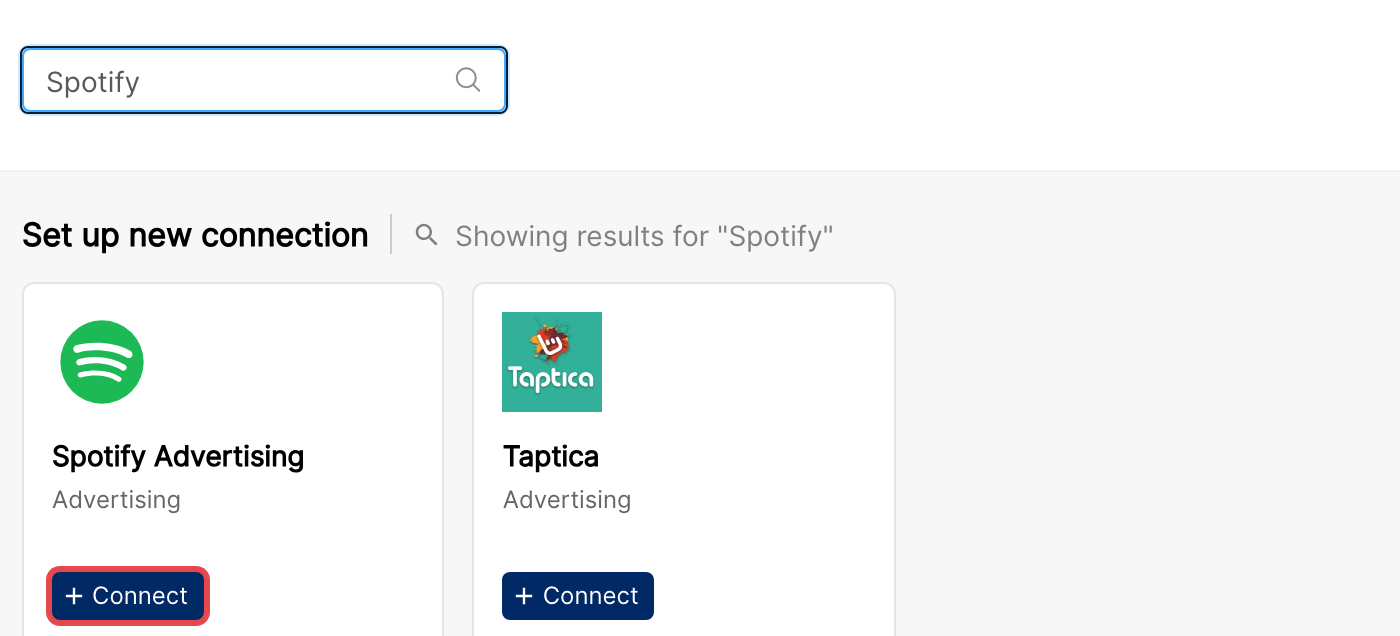
In Clarisights, open Integrations (the database-stack icon in the left sidebar). Under Set up new connection, search for Spotify and click + Connect on the Spotify Advertising card. A Spotify sign-in window opens. Sign in with the user that has access to the ad accounts you want to connect.
Step 2: Authorize Clarisights
Spotify displays a permission screen for Clarisights. Approve it to continue.
⚠ Common error: "You do not have permission to authorize this app." → The Spotify user you signed in with does not have access to any Spotify Ads business. Ask your Spotify Ads admin to add you to the relevant business in Ad Studio, then retry.
Step 3: Select ad accounts
After authorization, Clarisights looks up every business linked to your user and discovers all ad accounts under each business. Select the accounts you want to connect and click Connect Accounts.
⚠ An ad account is missing → Spotify only returns ad accounts under businesses your user has access to. Confirm in Spotify Ad Studio that the missing account's business has your user added, then click + Account on the Spotify Advertising page in Clarisights and sign in again to discover it.
Verify the connection
Open Integrations and, under Manage connected channels, open Spotify Advertising. Each account you connected is listed with its account ID and its Status switch turned on. After the first sync, the Last refreshed column shows when data was last pulled.
First data appears within 24 hours of the next scheduled sync.
Quick start: create a new report, add Spotify Advertising as the data source, and add Account · Campaign · Ad Set · Impressions · Clicks · Spend.
Data available
Hierarchy
How Spotify's native levels map to the standard Clarisights levels:
Native level (Spotify) | Clarisights level |
Ad Account | Account |
Campaign | Campaign |
Ad Set | Ad Group |
Ad | Ad |
Dimensions
Dimension | Level | Description |
Account | Account | Spotify ad account name |
Campaign / Campaign ID | Campaign | Campaign name and ID |
Campaign Status | Campaign | Status of the campaign (for example Active, Paused) |
Campaign Objective | Campaign | Objective selected for the campaign |
Ad Set / Ad Set ID | Ad Group | Ad set name and ID |
Ad Set Status | Ad Group | Status of the ad set |
Ad Set Start Date / Ad Set End Date | Ad Group | Flight dates of the ad set |
Ad Set Delivery | Ad Group | Delivery state of the ad set |
Ad Set Category | Ad Group | Category selected for the ad set |
Ad Set Optimization Goal | Ad Group | Optimization goal of the ad set |
Ad Set Budget / Ad Set Budget Type | Ad Group | Budget amount and whether it is a daily or lifetime budget |
Ad Set Bid Strategy / Ad Set Bid | Ad Group | Bidding setup of the ad set |
Cost Model | Ad Group | Pricing model of the ad set (for example CPM) |
Asset Format | Ad Group | Format of the ads in the ad set (audio, video, etc.) |
Age Range | Ad Group | Age targeting of the ad set |
Ad Set Reject Reason | Ad Group | Reason given by Spotify if the ad set was rejected |
Ad / Ad ID | Ad | Ad name and ID |
Ad Status | Ad | Status of the ad |
Ad Start Date / Ad End Date | Ad | Flight dates of the ad |
Delivery | Ad | Delivery state of the ad |
Call To Action / Call To Action Language | Ad | Call-to-action text on the ad and its language |
Clickthrough Url / Landing Page Domain | Ad | Destination URL of the call to action and its domain |
Tagline | Ad | Tagline shown with the ad |
Ad Reject Reason | Ad | Reason given by Spotify if the ad was rejected |
Ad Preview Url | Ad | Link to a preview of the ad creative |
Metrics
Core delivery
Metric | Description |
Impressions | Total ad impressions served |
Streamed Impressions | Streamed impressions, as reported by Spotify |
Off Spotify Impressions | Impressions delivered outside Spotify (for example on partner podcast apps) |
Clicks | Total clicks on the ad |
Click Through Rate | Clicks as a percentage of impressions |
Spend | Total spend in the account currency |
Audio & video playback
Metric | Description |
Starts | Ad plays that started |
First Quartiles / Midpoints / Third Quartiles | Ad plays that reached 25%, 50% and 75% |
Completes | Ad plays that reached 100% |
Skips | Ad plays that were skipped |
Unmutes | Times a muted video ad was unmuted |
Video Views | Video ad views (video formats) |
Video Expands | Times a video ad was expanded |
Listeners & intent
Metric | Description |
Unique Listeners | Unique listeners reached by the ad |
Paid Listens | Paid listens, as reported by Spotify |
New Listeners | New listeners to the promoted content, as reported by Spotify |
New Listener Streams | Streams from new listeners |
Streams | Streams of the promoted content |
Listeners with Intent | Listeners who showed intent towards the promoted content (for example saving or following), as reported by Spotify |
Raw Intent Rate / Intent Rate | Intent rate as reported by Spotify, and Listeners with Intent as a percentage of Unique Listeners |
Limitations & known constraints
7-day lookback: scheduled refreshes only re-pull the last 7 days, so Spotify restatements older than a week are not picked up automatically. Contact support if you need an older date range refreshed.
Daily granularity: reports are pulled per day; intra-day breakdowns are not available.
UTC days: daily data is requested in UTC, so day boundaries may differ from what you see in Spotify Ad Studio if your account uses another timezone.
No breakdowns: performance is reported per ad and day only. Breakdowns by demographics, device, region, or genre are not available.
Token revocation: if you revoke Clarisights' access in your Spotify account, the integration stops syncing until you re-authenticate.
Operating notes
Refresh schedule: data is pulled once a day.
Lookback: each refresh re-pulls the last 7 days plus today, so restatements Spotify makes within a week are captured automatically.
Adding new ad accounts: new ad accounts are not added automatically. Open Spotify Advertising from Manage connected channels, click + Account, sign in again, then select the new accounts and click Connect Accounts.
Currency conversion: native amounts are pulled as-is and converted to your reporting currency by Clarisights.
Reconnecting: Clarisights renews Spotify access automatically. If Spotify data stops updating because access was revoked or the user lost access to the business, open Spotify Advertising from Manage connected channels, click Refresh Token next to the connected user and sign in to Spotify again.
Need help?
When contacting support from the in-app messenger, please include:
The integration name and account ID (Integrations → Spotify Advertising)
The exact error message or screenshot
The step where the issue occurred
When the issue started