
Integrating Snapchat Ads on Clarisights
Connect your Snapchat Ads accounts to monitor Snap campaign performance, video engagement, app installs, on-site / off-site conversions, and SKAdNetwork-attributed results across every Snap ad format alongside the rest of your marketing stack.
At a glance
| Authentication | OAuth 2.0 (Snap Business / Ads Manager) |
| Permissions needed | Member or Admin role on each ad account in the Snap Business Manager organization |
| Account discovery | Automatic after sign-in: every ad account in every Snap Business organization the user belongs to is listed for selection |
| Data freshness | Daily |
| Lookback window | Last 3 days on every daily refresh; the last 7 days are re-pulled daily and conversions for the last 30 days are re-pulled daily to capture late conversions |
| Backfill on connect | On request: contact support to backfill older history |
| Timezone | Account native timezone |
| Currency | Account native currency (auto-converted via Currency Conversion); both local and converted spend exposed |
| Levels supported | Account · Campaign · Ad Set (ad squad) · Ad |
| Limited rollout | No |
Prerequisites
An active Snapchat Ads account managed in Snap Ads Manager via a Snap Business Manager organization
Member or Admin role on every ad account you want to connect
Permission to authorize third-party apps on your Snap profile
Steps to Connect
Step 1: Start the connection from Clarisights
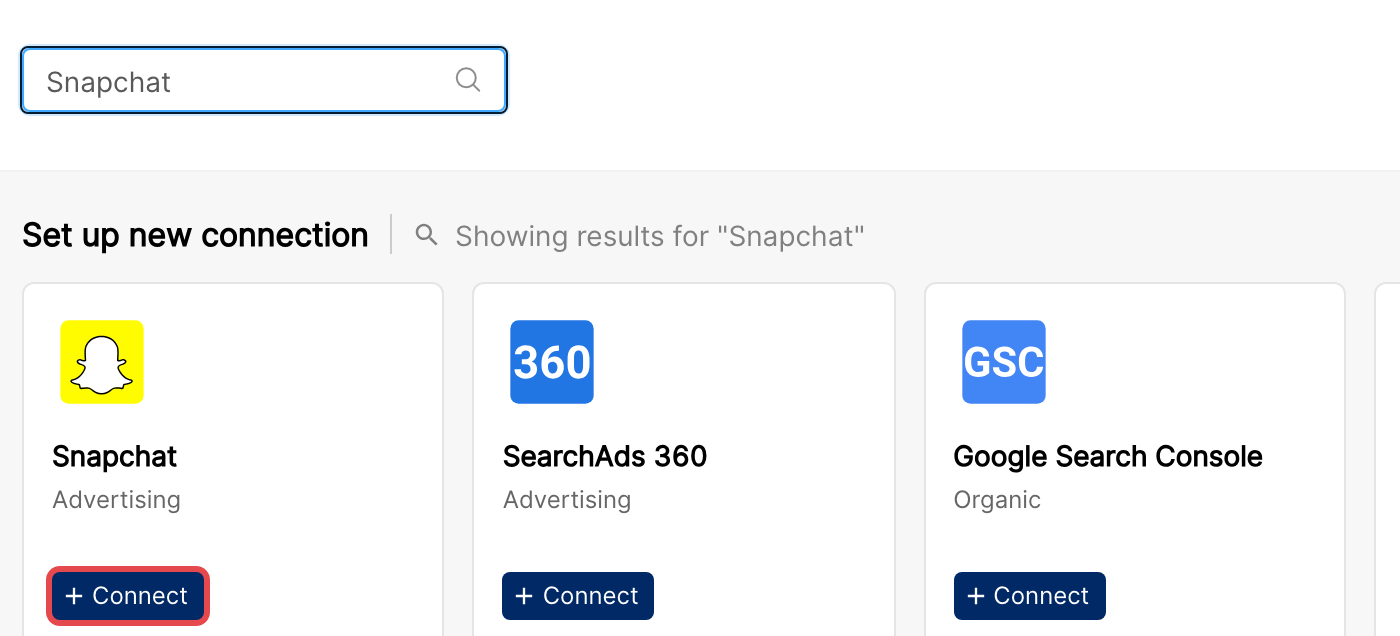
In Clarisights, go to Integrations and click + Connect below the Snapchat icon.
Step 2: Authorize Clarisights on Snapchat
You will be redirected to Snapchat to log in and grant the snapchat-marketing-api scope. Sign in with the user that has access to the ad accounts you want to connect, and approve the request.
To learn more about the Snapchat login and authorization prompt, see Snap's developer documentation: Marketing API Authentication.
⚠ Common error: “You don’t have access to authorize this app.” → The Snap user you’re signed in as is not a member of the Business Manager organization, or third-party app authorization is restricted by your admin. Have an organization admin add the user, or sign in with a different account.
Step 3: Wait for the redirect back to Clarisights
Do not refresh or close the window. Snapchat will redirect you back to Clarisights once authorization completes.
Step 4: Select the ad accounts to connect
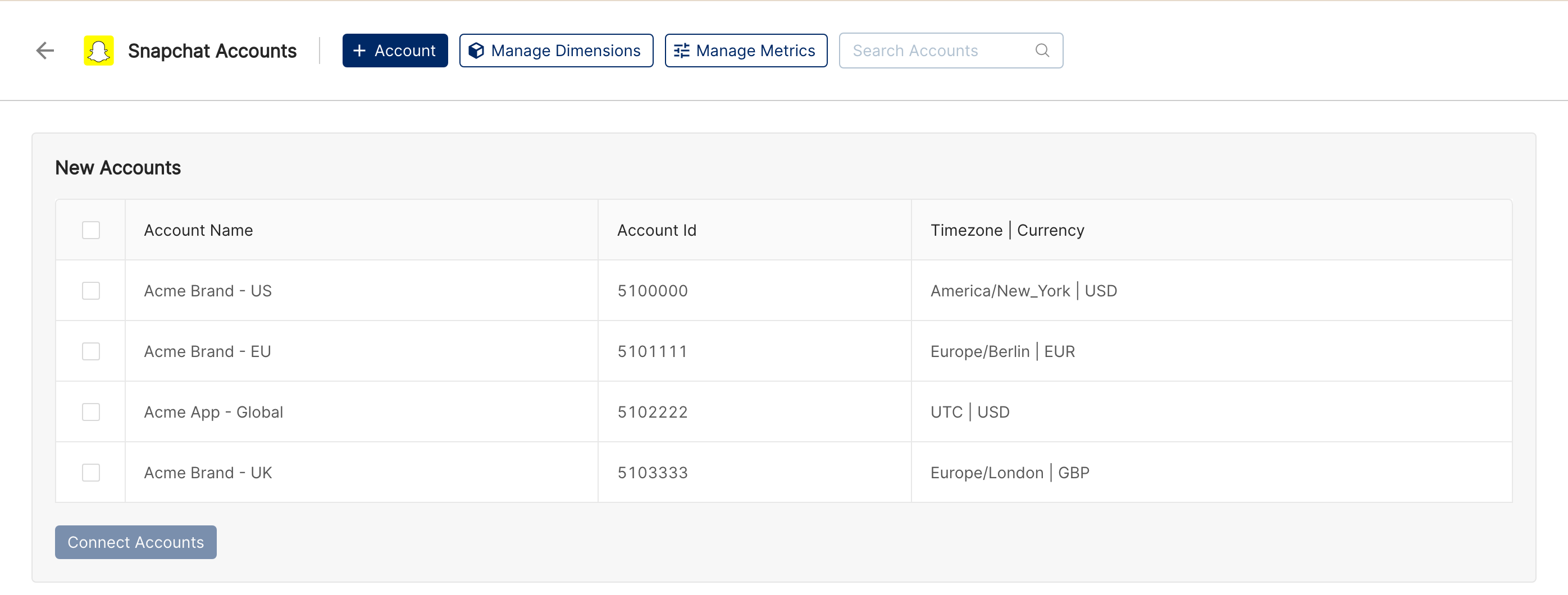
Clarisights lists every ad account in every organization the authorising user belongs to under New Accounts on the Snapchat Accounts page. Select the accounts you want to connect and click Connect Accounts.
Step 5: Manage connected accounts
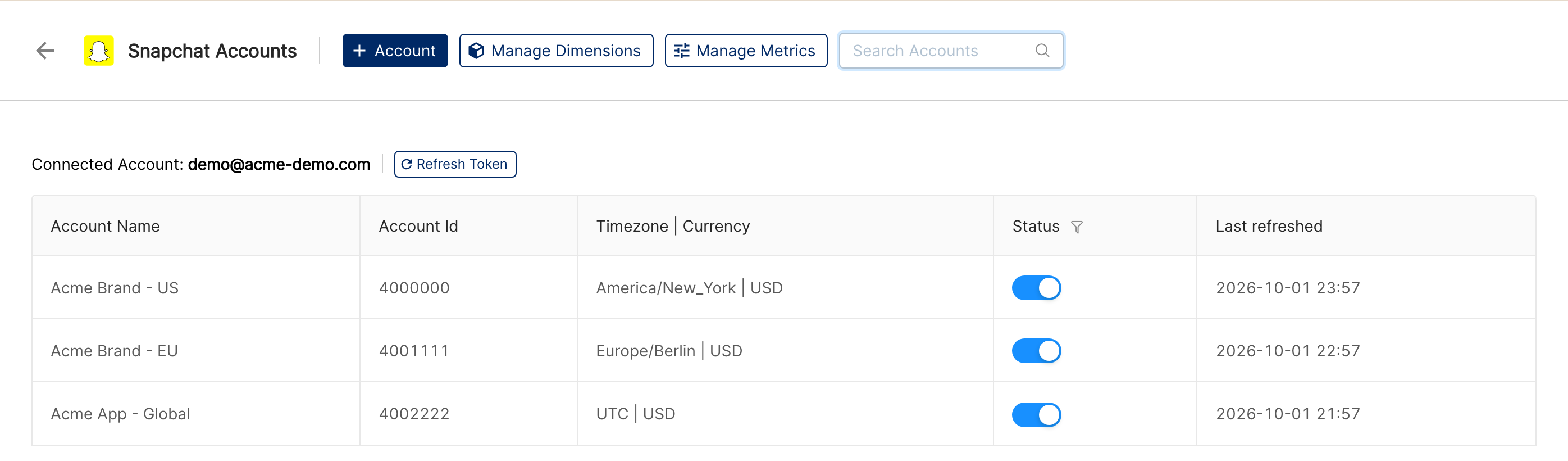
Connected accounts are listed on the Snapchat Accounts page with a Status toggle to pause or resume each account, a Last refreshed time, and a Refresh Token button to re-authorize the connection.
Verify the connection
On the Integrations page, open Snapchat under Manage connected channels. Each account you selected should be listed with its Status toggle switched on.
Data appears after the next daily refresh; the Last refreshed column shows when each account was last updated. Ask support if you need older history backfilled.
Quick start: in a report, click Create Widget and add Account, Campaign, SC: Paid Impressions, SC: Swipes and SC: Spend.
Data available
Hierarchy
How Snapchat’s native levels map to the standard Clarisights levels:
Native level (Snapchat) | Clarisights level |
Organization | (grouping; not a reporting level) |
Ad Account | Account |
Campaign | Campaign |
Ad Squad | Ad Set |
Ad | Ad |
Dimensions
Dimension | Level | Description |
Account | Account | Snap ad account name |
Account ID | Account | Snap ad account identifier |
Advertiser | Account | Advertiser name set on the ad account |
Business Name | Account | Business name set on the ad account |
Campaign | Campaign | Campaign name |
Campaign ID | Campaign | Campaign identifier |
Campaign Status | Campaign | Active or Paused |
Campaign Objective | Campaign | e.g., App Installs, Web Conversions, Awareness |
Campaign Start Date / Campaign End Date | Campaign | Scheduled start and end dates of the campaign |
Daily Budget | Campaign | Daily spend cap |
Lifetime Spend Cap | Campaign | Lifetime spend cap if set |
Ad Set | Ad Set | Ad squad name |
Ad Set ID | Ad Set | Ad squad identifier |
Ad Set Status | Ad Set | Active or Paused |
Ad Set Type | Ad Set | Type of ad squad |
Bid | Ad Set | Bid amount |
Optimization Goal | Ad Set | Optimization goal (e.g., installs, swipes) |
Placement | Ad Set | Where the ad runs |
Age Groups | Ad Set | Age-group targeting |
Gender | Ad Set | Gender targeting |
Locations | Ad Set | Geo targeting |
Ad | Ad | Ad name |
Ad ID | Ad | Ad identifier |
Ad Status | Ad | Active or Paused |
Ad Type | Ad | Format of the ad (e.g., Snap Ad, Story Ad, Collection Ad) |
Headline | Ad | Headline text shown on the ad |
Call To Action | Ad | CTA label (e.g., Shop Now, Install Now) |
Images / Video | Ad | Creative image or video used by the ad |
Metrics
Snapchat metrics appear in the metric picker with the SC: prefix (for example SC: Spend).
Spend & delivery
Metric | Description |
Spend | Total spend in reporting currency |
Spend (Local Currency) | Spend in the account’s native currency |
Paid Impressions | Impressions billed by Snap |
Earned Impressions | Organic impressions earned from shares and other engagement |
Total Impressions (Paid + Earned) | Paid and earned impressions combined |
eCPM | Effective cost per 1,000 paid impressions |
Coupon Amount Used / Coupon Amount Used (Local Currency) | Ad credit (coupon) applied to the spend |
Engagement
Metric | Description |
Swipes | Number of swipe-up actions on the ad |
Swipe Up Rate | Swipes divided by paid impressions |
eCPSU | Effective cost per swipe up |
Landing Page Views | Views of the landing page after a swipe |
Profile Clicks | Clicks through to the advertiser’s public profile |
Lens/Filter Shares / Lens/Filter Saves | Times a Lens or Filter was shared or saved |
Native Leads | Leads submitted through Snap lead forms |
Reminders Set | Reminders set from the ad |
Video
Metric | Description |
Video Views | Total video views |
Video Views (5s) / Video Views (15s) | Views reaching 5 or 15 seconds |
Video Views (Time-Based) | Snap’s time-based video view count |
Engaged Views | Engaged video views as reported by Snap |
Video Views to 25% / 50% / 75% / completion | Video-completion quartiles |
Screen Time (s) / Play Time (s) | Total time the ad was on screen and the video was playing, in seconds |
Long Form Video Attachment Views | Views of long-form video attachments |
Long Form Video Views to 25% / 50% / 75% / completion | Long-form attachment video quartiles |
Attachment View Time (s) | Total time spent viewing attachments, in seconds |
App install funnel
Metric | Description |
eCPI | Effective cost per install |
App installs themselves are reported as conversion metrics (SC Conv: Total installs, iOS installs, Android installs) and as SKAN metrics, described below.
Custom conversions
Snap’s standard conversion events (Snap Pixel, app and MMP-shared events) appear in Clarisights with the SC Conv: prefix, for example SC Conv: Purchase conversions, SC Conv: Sign up conversions, SC Conv: Total installs and SC Conv: Custom Event 1 to 5. For events with revenue, a value variant with the SC Conv Value: prefix (for example SC Conv Value: Purchase conversions values) gives the value in your reporting currency, with a local-currency variant alongside.
Conversion metrics follow the Snapchat attribution window set for the report (Attribution Window in the report options), combining a swipe window (1, 7 or 28 days) with a view window (none, 1, 7 or 28 days). Your company default applies when a report has no attribution window set.
By default, Snap reports conversions on the day the conversion happened. On request, support can also turn on impression-time reporting, which adds SC Conv (IMP): and SC Conv Value (IMP): metrics that count each conversion on the day of the ad impression.
SKAdNetwork (iOS attribution)
For iOS app campaigns, Clarisights surfaces Snap’s SKAdNetwork conversion data under the Snapchat SKAN Conversions category. Each conversion event has three variants:
SC-SKAN [Event] (Swipe): click-attributed SKAN events
SC-SKAN [Event] (View): view-attributed SKAN events
SC-SKAN [Event] (Total): total SKAN-attributed events (derived from the swipe variant)
SKAN events include installs, purchases, sign ups, app opens, add to cart, rate submissions, custom events 1 to 5, SKAN Assist Install, SKAN Visitation and SKAN Null-Value.
Demographic & geo breakdowns
Snapchat data can be broken down by Country, Region, DMA, Gender, Age Bucket, Lifestyle Category, Operating System and Make (device make) for any metric Snap supports at that breakdown. These breakdowns are fetched live from Snap when you request them.
Limitations & known constraints
Demographic minimums: Snap enforces minimum impression / engagement thresholds before demographic breakdowns become available; rows below the threshold are suppressed.
Reporting delay: most metrics arrive within 24 hours; conversion and SKAN metrics can take up to 72 hours to fully reconcile due to Snap’s postback windows.
Attribution windows: conversion totals depend on the Snapchat attribution window set for the report. Changing the attribution window changes the metric values.
Token revocation: if Clarisights’ access is revoked in Snap Business Manager, the integration stops syncing until the user re-authenticates with Refresh Token on the Snapchat Accounts page.
Operating notes
Refresh schedule: data is pulled daily at the account, campaign, ad set, and ad levels.
Lookback: each daily refresh covers the last 3 days. Separate daily runs re-pull the last 7 days of reporting data and the last 30 days of conversions, so late conversions are picked up. Older periods are refreshed only by a backfill, which support can run on request.
Adding new ad accounts: click + Account on the Snapchat Accounts page and sign in again; new accounts are listed under New Accounts, ready to connect. On request, support can also turn on automatic account sync, a daily check that adds new ad accounts with recent activity without signing in again.
Currency conversion: spend and conversion value are pulled in the account’s native currency and converted to your reporting currency.
Credential rotation: OAuth tokens refresh automatically. Re-authenticate from the Integrations page only if a Snap password changes or access is revoked.
Need help?
When contacting support from the in-app messenger, please include:
The integration name and account ID (shown on the Snapchat Accounts page)
The exact error message or screenshot
The step where the issue occurred
When the issue started