
Area chart widget
An area chart is a line chart where the area between the line and the axis is shaded with a colour. The shading helps show the magnitude of trends.
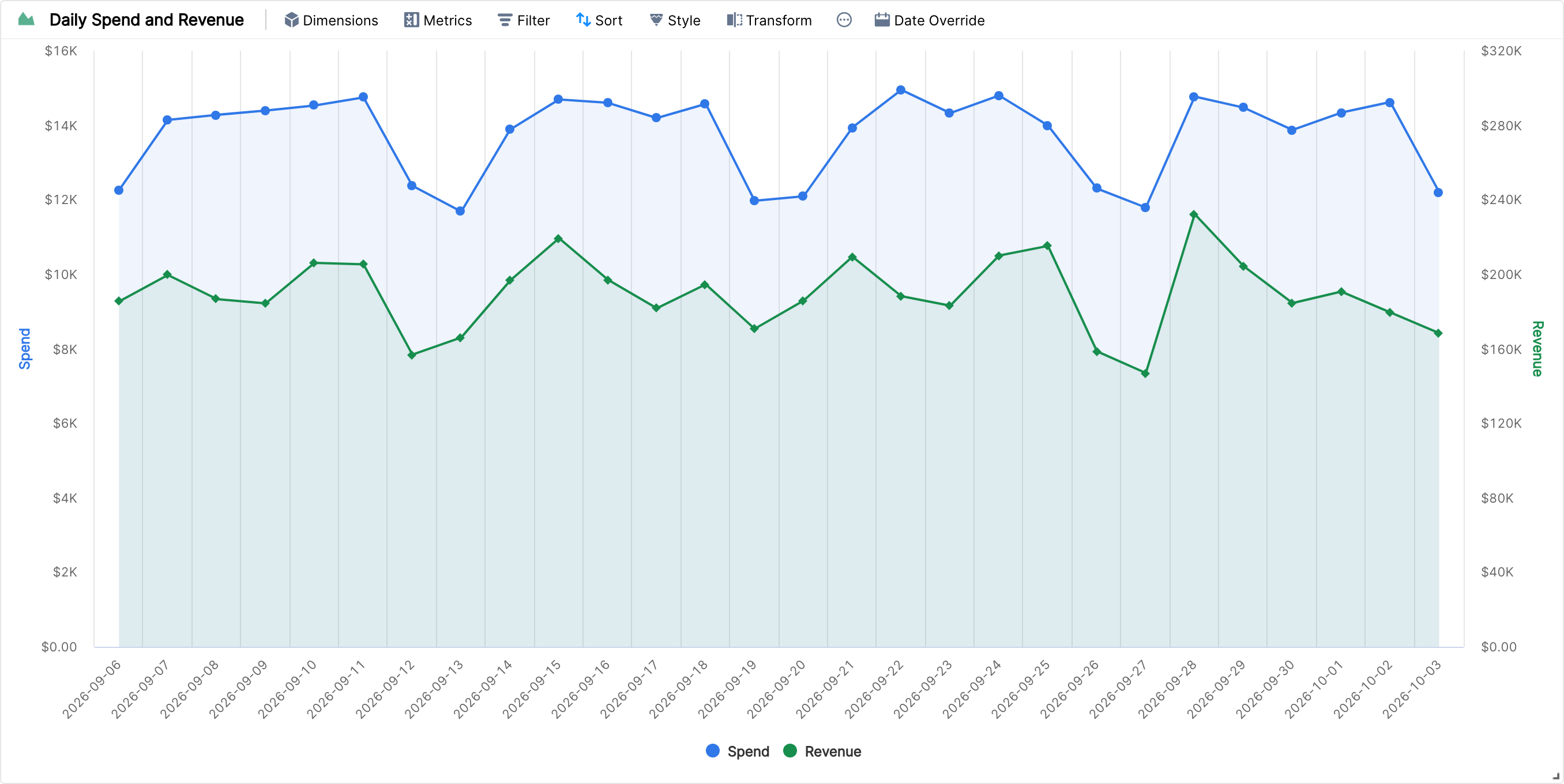
Here is an area chart with Date as the dimension and Spend and Revenue as the metrics, each on its own axis.
Axes
By default, the area chart draws all the metrics on the same axis. To add a new axis, go to Style > Axes and drag a metric into Drop here to add a new axis.

Metric order
The area of the metric chosen first is drawn behind the area of the metric chosen after it, so the later metric overlaps the earlier one.
In the next example, Total SEM Cost was overlapped by Total Ad Spend. Swapping their order in the Metrics panel gives this result:

Labels
To add more detail, go to Style and check Show Labels. With labels, the chart looks like this:

When label values are very close to each other, only one is shown, which keeps the chart readable. Making the widget bigger increases the space between labels, so more or all of them show up.
The area chart also supports multiple dimensions and metrics.